> ## Documentation Index
> Fetch the complete documentation index at: https://docs.retellai.com/llms.txt
> Use this file to discover all available pages before exploring further.
# Add payment methods
> Add a Stripe payment method to your Retell workspace to buy credits, keep calling after the free trial, purchase phone numbers, and avoid service interruptions.
Adding a payment method is required before you can purchase phone numbers or use Retell services beyond the free trial. We use Stripe to securely process all payments.
Your payment method on file is used for:
* **Credit-based accounts** — purchasing credits, auto-recharge top-ups, and the end-of-month invoice for subscription items (phone numbers, knowledge bases, CPS, and concurrency).
* **Legacy monthly-billing accounts** — the end-of-period charge for your usage and recurring items.
See [Billing overview](/accounts/billing) to check which billing version your account uses.
Payment methods are scoped **per workspace**. Adding a card in one workspace does not carry it over to another workspace, even under the same login — each workspace has its own billing setup, invoices, and usage totals. If you create a second workspace, switch into it and repeat the steps below before starting calls there. See [Create and manage Retell workspaces](/accounts/workspace) for how to switch workspaces.
## Adding Your Payment Method
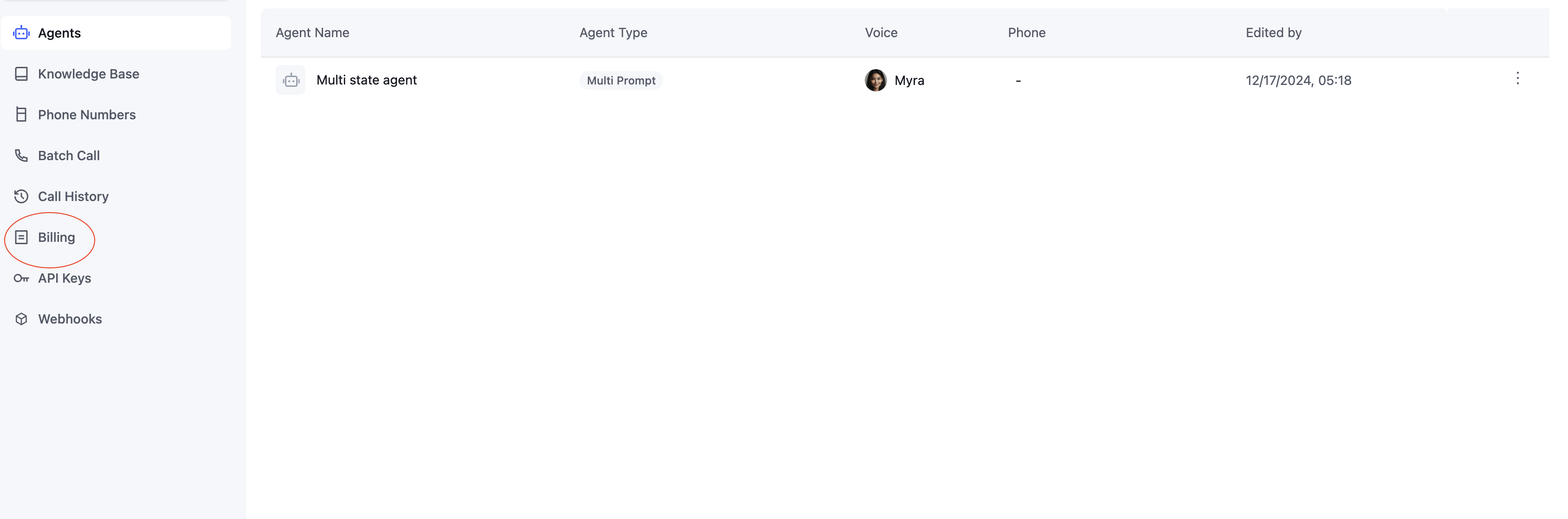
Go to the Billing tab in your dashboard
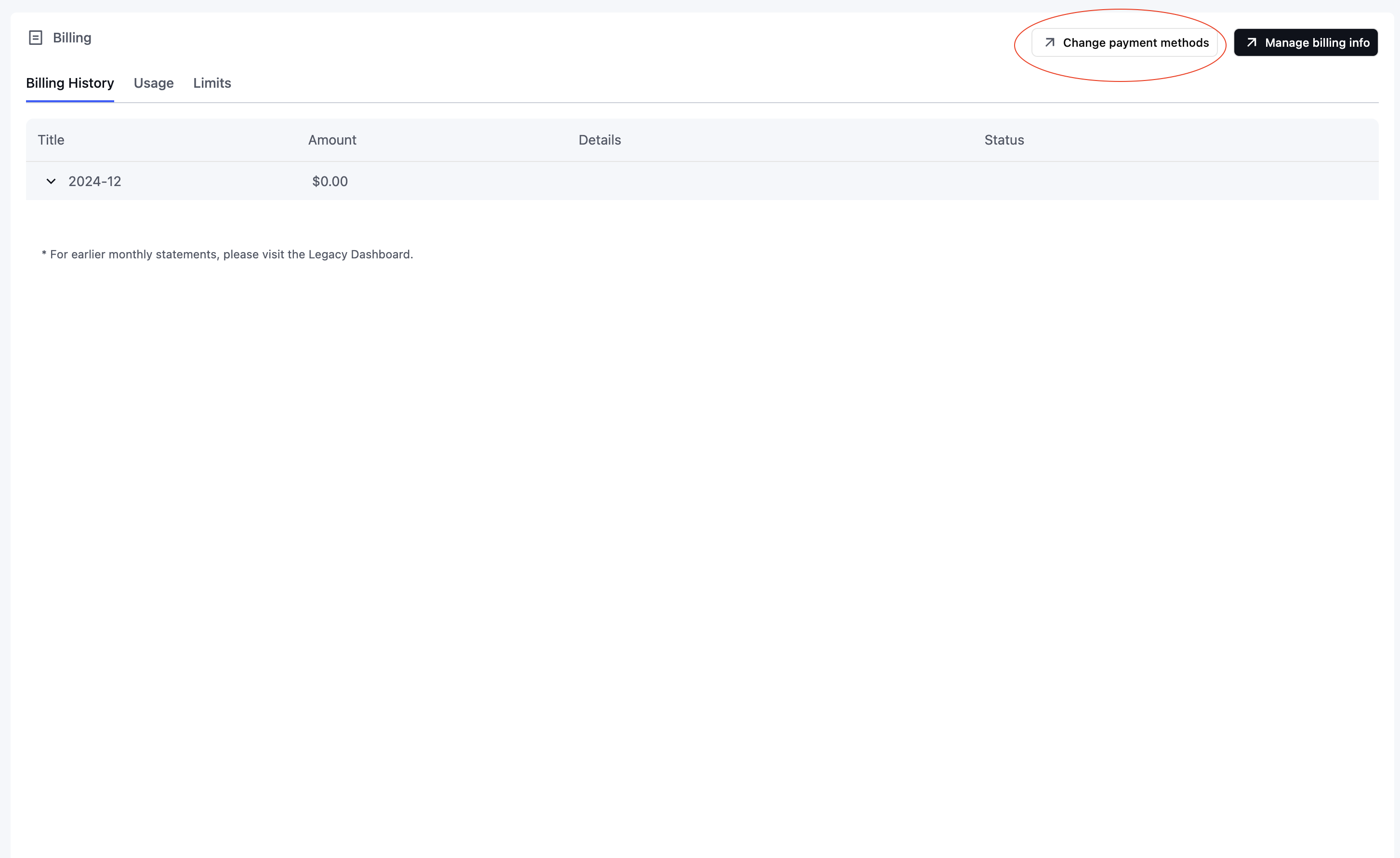
 Click "Change payment methods" to open payment settings
 In the Stripe portal, click "Add payment method" and enter your payment details. Your payment information is securely handled by Stripe.