> ## Documentation Index
> Fetch the complete documentation index at: https://docs.retellai.com/llms.txt
> Use this file to discover all available pages before exploring further.
# Public keys
> Use Retell AI public keys for web calls and the website widget: authenticate browser requests, restrict allowed domains, and configure reCAPTCHA protection.
Public keys authenticate the Retell website widget and browser web calls. You can include public keys in frontend code; keep [API keys](/accounts/api-keys-overview) on your server.
Use public keys for:
* Embedding the [website widget](/deploy/chat-widget)
* Starting [web calls](/deploy/web-call) with `RetellClient.createWebCall()`
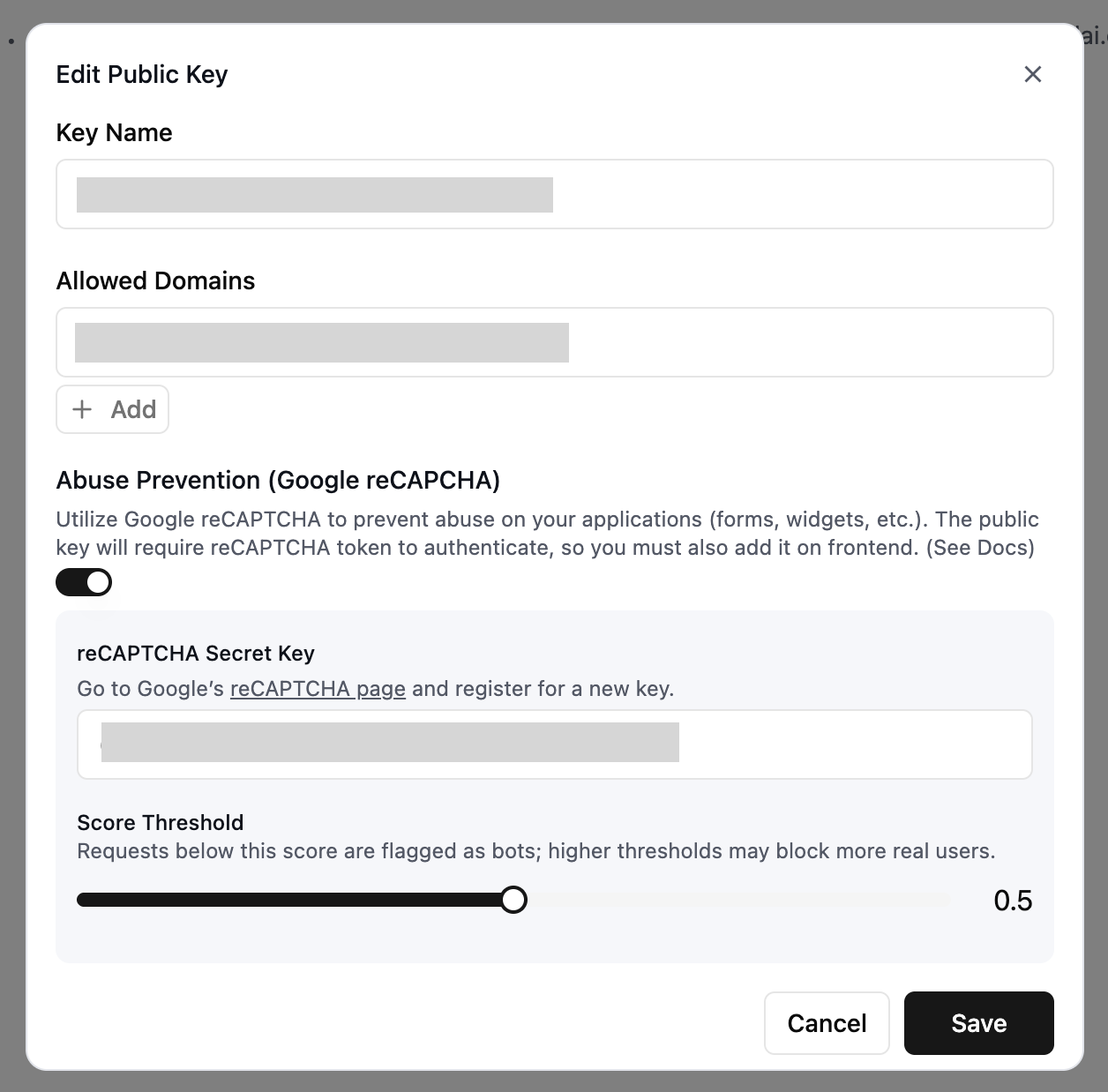 ## Create or edit a public key
1. Open **API Keys → Public Keys** in the Retell dashboard.
2. Add a public key or select an existing one to edit.
3. Add the domains that can use it, such as `example.com` or `app.example.com`. Add `localhost` for local development.
4. Save the key and copy its value into your widget configuration or Web SDK client.
Only allow domains you control, and remove domains you no longer use.
## Google reCAPTCHA v3 protection (optional)
Enable Google reCAPTCHA v3 to help limit automated abuse. When enabled, creating a web call or starting a widget conversation requires a valid reCAPTCHA token.
To enable reCAPTCHA:
1. Edit the public key and enable **Abuse Prevention (Google reCAPTCHA)**.
2. Add your reCAPTCHA **secret key** from [Google's reCAPTCHA console](https://www.google.com/recaptcha).
3. Set the **Score Threshold**. The dashboard defaults to 0.5 (as of September 2026). Requests below the threshold are rejected; higher thresholds can also reject more legitimate users.
4. Save your changes.
Your frontend uses the reCAPTCHA **site key** to obtain tokens; keep the secret key in the dashboard. Follow [Google's reCAPTCHA v3 guide](https://developers.google.com/recaptcha/docs/v3) to obtain a fresh token when the user starts a call. For the Web SDK, pass it as `recaptchaToken` to `createWebCall()`. For the website widget, configure its [reCAPTCHA site key](/deploy/chat-widget#recaptcha-protection).
## Create or edit a public key
1. Open **API Keys → Public Keys** in the Retell dashboard.
2. Add a public key or select an existing one to edit.
3. Add the domains that can use it, such as `example.com` or `app.example.com`. Add `localhost` for local development.
4. Save the key and copy its value into your widget configuration or Web SDK client.
Only allow domains you control, and remove domains you no longer use.
## Google reCAPTCHA v3 protection (optional)
Enable Google reCAPTCHA v3 to help limit automated abuse. When enabled, creating a web call or starting a widget conversation requires a valid reCAPTCHA token.
To enable reCAPTCHA:
1. Edit the public key and enable **Abuse Prevention (Google reCAPTCHA)**.
2. Add your reCAPTCHA **secret key** from [Google's reCAPTCHA console](https://www.google.com/recaptcha).
3. Set the **Score Threshold**. The dashboard defaults to 0.5 (as of September 2026). Requests below the threshold are rejected; higher thresholds can also reject more legitimate users.
4. Save your changes.
Your frontend uses the reCAPTCHA **site key** to obtain tokens; keep the secret key in the dashboard. Follow [Google's reCAPTCHA v3 guide](https://developers.google.com/recaptcha/docs/v3) to obtain a fresh token when the user starts a call. For the Web SDK, pass it as `recaptchaToken` to `createWebCall()`. For the website widget, configure its [reCAPTCHA site key](/deploy/chat-widget#recaptcha-protection).