> ## Documentation Index
> Fetch the complete documentation index at: https://docs.retellai.com/llms.txt
> Use this file to discover all available pages before exploring further.
# Define a QA cohort
> Define a Retell AI QA cohort: pick agents, date range, and call filters, then set a sampling rate to control evaluation volume and cost.
A cohort defines which calls AI QA evaluates and how many of them to sample. Configure it in the Create QA flow, then move on to [resolution criteria](/ai-qa/define-resolution-criteria).
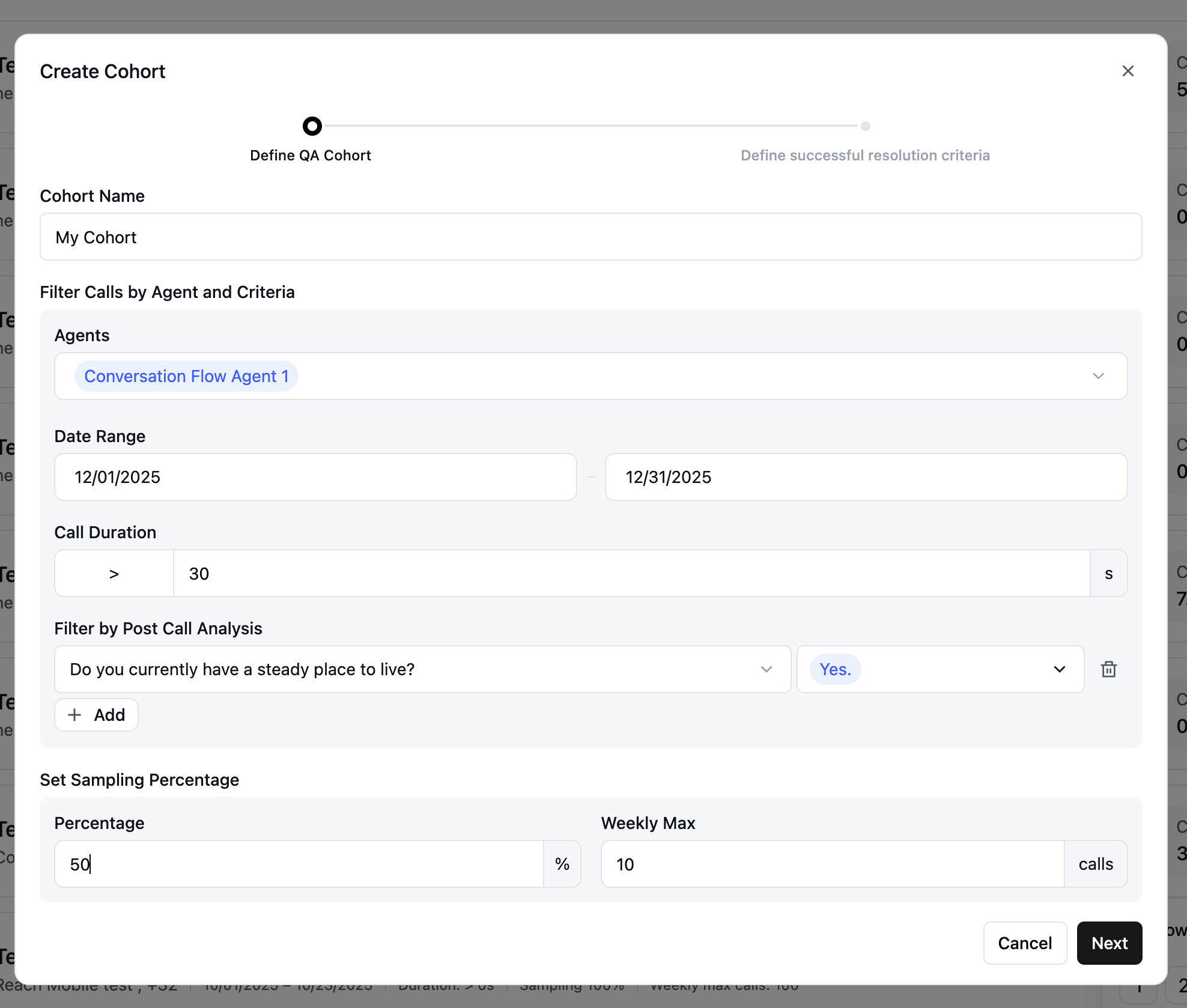 Give the cohort a unique name that indicates its purpose or filters, so it's easy to find on the AI QA dashboard — for example, `High-value customers Q4` or `Support calls - week 1`.
Choose which calls to include based on the following filters:
* **Agents** — Select one or more agents whose calls you want to analyze. Use this to focus on a single agent or compare performance across several.
* **Date range** — The **start date** is required. The **end date** is optional; leave it blank to create a dynamic cohort that keeps adding new matching calls as they occur.
* **Call duration** — Include or exclude calls by length. Filter out very short calls (for example, under 30 seconds) that carry little signal, or focus on longer calls that need more analysis.
* **Disconnection reason** — Filter by [disconnection reason](/reliability/debug-call-disconnect).
* **Post Call Extraction** — Add custom filters based on your [Post Call Extraction](/features/post-call-analysis-overview) results.
Sampling controls how many of the filtered calls are actually analyzed, so you can manage volume and cost.
* **Percentage** — The share of matching calls to include. Setting 50% analyzes half of all calls that match your filters.
* **Weekly max** — A cap on how many calls are analyzed per week. Setting it to 100 keeps the cohort under 100 calls a week even if the percentage would allow more.
The weekly max is a ceiling. If the percentage yields fewer calls than the max, the percentage applies; if it yields more, the max applies.
Once your filters and sampling are set, click **Next** to move on to [resolution criteria](/ai-qa/define-resolution-criteria).
Give the cohort a unique name that indicates its purpose or filters, so it's easy to find on the AI QA dashboard — for example, `High-value customers Q4` or `Support calls - week 1`.
Choose which calls to include based on the following filters:
* **Agents** — Select one or more agents whose calls you want to analyze. Use this to focus on a single agent or compare performance across several.
* **Date range** — The **start date** is required. The **end date** is optional; leave it blank to create a dynamic cohort that keeps adding new matching calls as they occur.
* **Call duration** — Include or exclude calls by length. Filter out very short calls (for example, under 30 seconds) that carry little signal, or focus on longer calls that need more analysis.
* **Disconnection reason** — Filter by [disconnection reason](/reliability/debug-call-disconnect).
* **Post Call Extraction** — Add custom filters based on your [Post Call Extraction](/features/post-call-analysis-overview) results.
Sampling controls how many of the filtered calls are actually analyzed, so you can manage volume and cost.
* **Percentage** — The share of matching calls to include. Setting 50% analyzes half of all calls that match your filters.
* **Weekly max** — A cap on how many calls are analyzed per week. Setting it to 100 keeps the cohort under 100 calls a week even if the percentage would allow more.
The weekly max is a ceiling. If the percentage yields fewer calls than the max, the percentage applies; if it yields more, the max applies.
Once your filters and sampling are set, click **Next** to move on to [resolution criteria](/ai-qa/define-resolution-criteria).