> ## Documentation Index
> Fetch the complete documentation index at: https://docs.retellai.com/llms.txt
> Use this file to discover all available pages before exploring further.
# MCP tools for single and multi-prompt agents
> Connect a Retell single- or multi-prompt agent to a remote MCP server so it can call the server's tools during a live voice or chat conversation.
Connect your single- or multi-prompt agent to a remote [Model Context Protocol (MCP)](https://modelcontextprotocol.io/) server, and the agent can call that server's tools during a live call. Instead of wiring up one [custom function](/build/single-multi-prompt/custom-function) per action, you point the agent at an MCP server once and choose which of its tools the agent can use.
## When to use MCP tools
Use an MCP server when the tools your agent needs already sit behind an MCP interface, or when you want to expose a set of tools to the agent through a single connection:
* **You already run an MCP server** — reuse the same tools your other AI agents and IDE assistants call, without rebuilding them as custom functions.
* **You want many tools from one integration** — connect once, then pick which of the server's tools the agent can access, instead of configuring each endpoint separately.
* **You use a third-party MCP server** — connect to a hosted MCP service (search, CRM, internal tooling) that already speaks the protocol.
If you only need to call your own API endpoint, a [custom function](/build/single-multi-prompt/custom-function) is simpler — there's no MCP server to run. For self-contained logic that doesn't need a server, use a [code tool](/build/single-multi-prompt/code-tool).
This page is about connecting your agent **to** a remote MCP server so it can call that server's tools. It's not the same as [Retell's own MCP server](/get-started/mcp-server), which lets MCP clients like Cursor and Claude Desktop manage your Retell account.
### Example: order lookup over MCP
A retail support team already runs an MCP server that exposes `lookup_order` and `create_ticket` tools to its internal assistants. You connect a Retell support agent to the same server and enable both tools. When a caller gives an order number, the agent calls `lookup_order` and reads back the status; if the caller reports a problem, it calls `create_ticket` — with no separate custom function for either action.
## How it works
You attach the MCP server to the agent, and each tool you enable becomes a tool the agent can call whenever your prompt and the tool's description tell it to — the same way [custom functions](/build/single-multi-prompt/custom-function) and [prebuilt functions](/build/single-multi-prompt/function-calling) work. Retell connects to the server over Streamable HTTP, lists the server's tools, and calls a tool with arguments the LLM fills in from the conversation. The tool's response is handed back to the agent, which can speak it, act on it, or save parts of it as [dynamic variables](/build/dynamic-variables).
## Connect an MCP server
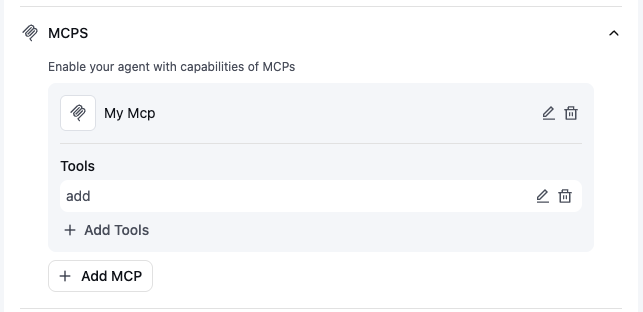
In your agent, open the **MCPs** section and click **Add MCP**.
 In the dialog, enter a **name** for the server and its **URL**. The URL field is masked by default; use the reveal icon to check it.
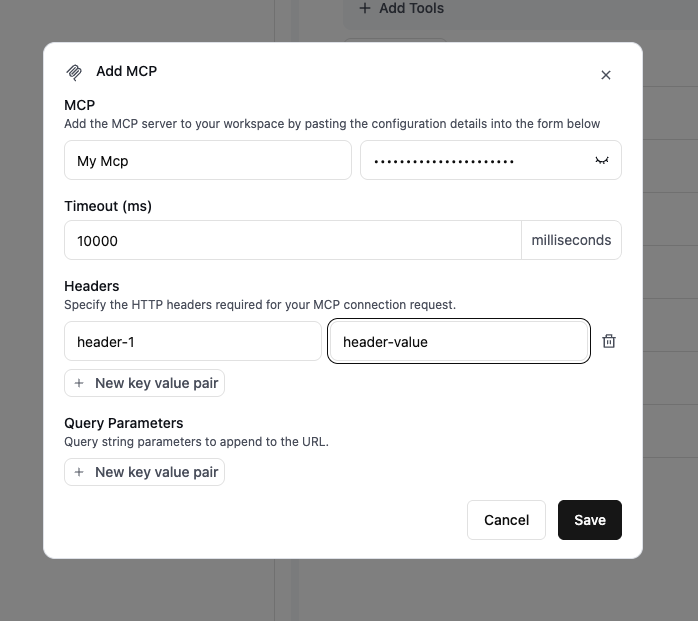 Under **Headers**, add the key/value pairs Retell sends with the MCP connection request — most often an auth header such as `Authorization: Bearer `. Click **New key value pair** for each header. Values can include [dynamic variables](/build/dynamic-variables), so you can pass a per-call token as `{{api_key}}`.
Under **Query Parameters**, add key/value pairs Retell appends to the server URL as a query string. Use this for servers that authenticate or route by query parameter. Values can include [dynamic variables](/build/dynamic-variables) too.
Click **Save**. The server appears in the **MCPs** section, ready for you to add tools.
On the saved server, click **Add Tools**. In **Tool Access Scope**, open the **Select Tool** dropdown and pick a tool — Retell connects to the server and lists its tools, each with its name and description.
Under **Headers**, add the key/value pairs Retell sends with the MCP connection request — most often an auth header such as `Authorization: Bearer `. Click **New key value pair** for each header. Values can include [dynamic variables](/build/dynamic-variables), so you can pass a per-call token as `{{api_key}}`.
Under **Query Parameters**, add key/value pairs Retell appends to the server URL as a query string. Use this for servers that authenticate or route by query parameter. Values can include [dynamic variables](/build/dynamic-variables) too.
Click **Save**. The server appears in the **MCPs** section, ready for you to add tools.
On the saved server, click **Add Tools**. In **Tool Access Scope**, open the **Select Tool** dropdown and pick a tool — Retell connects to the server and lists its tools, each with its name and description.
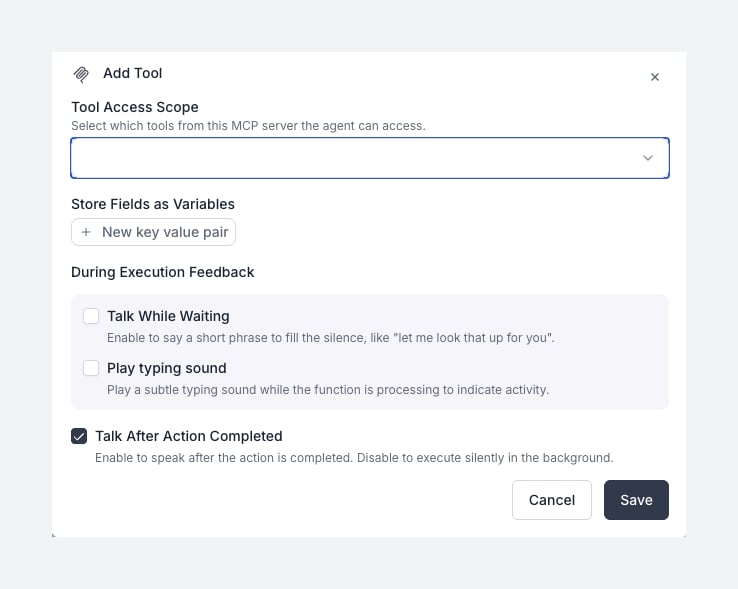 Add a tool for each of the server's tools you want the agent to be able to call. Only the tools you add here are exposed to the agent.
In **Store Fields as Variables**, extract values from the tool's response and save them as [dynamic variables](/build/dynamic-variables) to use later in the call. Each row maps a variable name to the path of a field in the response, using dot notation with array indexing where needed — for example `user.name` or `data.items[0].id`. This works only when the tool returns a JSON object.
For example, from this response you could save the name and reference it later as `{{user_name}}`:
```json theme={"dark"}
{
"user": {
"name": "John Doe",
"age": 26
}
}
```
Control what the agent does while the tool runs and after it returns:
* **Talk While Waiting** (off by default) — the agent says a short line to fill the silence while the tool runs, like "Let me look that up for you." Choose **Prompt** to have the LLM generate the line, or **Static Sentence** to speak a fixed message you write. Turn it on for user-facing lookups; leave it off for background tasks. You can also enable **Play typing sound** to play a subtle typing sound while the tool runs.
* **Talk After Action Completed** (on by default) — the agent responds again once the tool returns, so it can read back the result or call another tool. Turn it off only for fire-and-forget tasks, like silently uploading a result to your server.
Click **Save**. The tool now appears under the server in the **MCPs** section.
In your prompt, say explicitly when the agent should call each tool — the agent decides from the tool's name, description, and your prompt. For example:
```
When the user gives their name and phone number, call the `verify_user` tool.
```
## FAQ
Both let the agent take an action mid-call. A [custom function](/build/single-multi-prompt/custom-function) calls one HTTP endpoint you host. An MCP tool connects to a remote MCP server that can expose many tools through a single connection, and Retell discovers those tools from the server. Use MCP when the tools already live behind an MCP server; use a custom function to call your own API directly.
The agent decides when to call a tool from its name, description, and your prompt. Add an explicit instruction in the prompt (for example, "When the user gives an order number, call `lookup_order`"), and make sure the tool is added under the server in the **MCPs** section — only the tools you add there are available to the agent.
Everything the tool returns is handed to the agent's LLM, so the agent can speak or act on it right away. To reuse a specific field later in the call, map it to a dynamic variable under **Store Fields as Variables** and reference it as `{{variable_name}}`.
Retell connects over Streamable HTTP. The server URL must be publicly reachable over `http` or `https` — Retell rejects any other protocol and blocks URLs that point to `localhost`, private network ranges, or cloud metadata endpoints. Pass any auth the server needs through the request headers or query parameters.
No. Retell authenticates to your MCP server only through the request headers and query parameters you configure — it doesn't run an interactive OAuth authorization flow. If your server requires OAuth, obtain the access token outside of Retell and pass it in a header such as `Authorization: Bearer `. For short-lived tokens, use a [dynamic variable](/build/dynamic-variables) like `{{access_token}}` in the header value and pass a fresh token with each call.
Yes. Retell's outbound requests come from the IP address `100.20.5.228`, the same address used for [custom functions](/build/single-multi-prompt/custom-function) and [webhooks](/features/webhook-overview). Allowlist it at your firewall, and add a secret in the request headers or query parameters as a second check.
Yes. The URL accepts [dynamic variables](/build/dynamic-variables) the same way headers and query parameters do — for example `https://mcp.example.com/{{tenant_id}}`. Retell fills them in when it connects. Every variable in the URL must resolve at call time; if one is still unset, the connection fails with an error instead of calling an incomplete URL.
No. If a tool call fails or times out, the agent receives the error and continues based on your prompt. Keep your server responsive, and make side-effecting tools like creating a ticket idempotent so a repeat call is safe.
Yes. Retell uses the tool's text response and caps it at 15,000 characters by default before handing it to the LLM, so return only what the agent needs. Contact support if you need a higher limit.
Yes. Conversation flow agents call MCP tools through a dedicated [MCP node](/build/conversation-flow/mcp-node) rather than adding them to the response engine. The server configuration (URL, headers, query params) is the same; the difference is where the tool call fits in the flow.
Add a tool for each of the server's tools you want the agent to be able to call. Only the tools you add here are exposed to the agent.
In **Store Fields as Variables**, extract values from the tool's response and save them as [dynamic variables](/build/dynamic-variables) to use later in the call. Each row maps a variable name to the path of a field in the response, using dot notation with array indexing where needed — for example `user.name` or `data.items[0].id`. This works only when the tool returns a JSON object.
For example, from this response you could save the name and reference it later as `{{user_name}}`:
```json theme={"dark"}
{
"user": {
"name": "John Doe",
"age": 26
}
}
```
Control what the agent does while the tool runs and after it returns:
* **Talk While Waiting** (off by default) — the agent says a short line to fill the silence while the tool runs, like "Let me look that up for you." Choose **Prompt** to have the LLM generate the line, or **Static Sentence** to speak a fixed message you write. Turn it on for user-facing lookups; leave it off for background tasks. You can also enable **Play typing sound** to play a subtle typing sound while the tool runs.
* **Talk After Action Completed** (on by default) — the agent responds again once the tool returns, so it can read back the result or call another tool. Turn it off only for fire-and-forget tasks, like silently uploading a result to your server.
Click **Save**. The tool now appears under the server in the **MCPs** section.
In your prompt, say explicitly when the agent should call each tool — the agent decides from the tool's name, description, and your prompt. For example:
```
When the user gives their name and phone number, call the `verify_user` tool.
```
## FAQ
Both let the agent take an action mid-call. A [custom function](/build/single-multi-prompt/custom-function) calls one HTTP endpoint you host. An MCP tool connects to a remote MCP server that can expose many tools through a single connection, and Retell discovers those tools from the server. Use MCP when the tools already live behind an MCP server; use a custom function to call your own API directly.
The agent decides when to call a tool from its name, description, and your prompt. Add an explicit instruction in the prompt (for example, "When the user gives an order number, call `lookup_order`"), and make sure the tool is added under the server in the **MCPs** section — only the tools you add there are available to the agent.
Everything the tool returns is handed to the agent's LLM, so the agent can speak or act on it right away. To reuse a specific field later in the call, map it to a dynamic variable under **Store Fields as Variables** and reference it as `{{variable_name}}`.
Retell connects over Streamable HTTP. The server URL must be publicly reachable over `http` or `https` — Retell rejects any other protocol and blocks URLs that point to `localhost`, private network ranges, or cloud metadata endpoints. Pass any auth the server needs through the request headers or query parameters.
No. Retell authenticates to your MCP server only through the request headers and query parameters you configure — it doesn't run an interactive OAuth authorization flow. If your server requires OAuth, obtain the access token outside of Retell and pass it in a header such as `Authorization: Bearer `. For short-lived tokens, use a [dynamic variable](/build/dynamic-variables) like `{{access_token}}` in the header value and pass a fresh token with each call.
Yes. Retell's outbound requests come from the IP address `100.20.5.228`, the same address used for [custom functions](/build/single-multi-prompt/custom-function) and [webhooks](/features/webhook-overview). Allowlist it at your firewall, and add a secret in the request headers or query parameters as a second check.
Yes. The URL accepts [dynamic variables](/build/dynamic-variables) the same way headers and query parameters do — for example `https://mcp.example.com/{{tenant_id}}`. Retell fills them in when it connects. Every variable in the URL must resolve at call time; if one is still unset, the connection fails with an error instead of calling an incomplete URL.
No. If a tool call fails or times out, the agent receives the error and continues based on your prompt. Keep your server responsive, and make side-effecting tools like creating a ticket idempotent so a repeat call is safe.
Yes. Retell uses the tool's text response and caps it at 15,000 characters by default before handing it to the LLM, so return only what the agent needs. Contact support if you need a higher limit.
Yes. Conversation flow agents call MCP tools through a dedicated [MCP node](/build/conversation-flow/mcp-node) rather than adding them to the response engine. The server configuration (URL, headers, query params) is the same; the difference is where the tool call fits in the flow.