> ## Documentation Index
> Fetch the complete documentation index at: https://docs.retellai.com/llms.txt
> Use this file to discover all available pages before exploring further.
# Create and schedule batch calls
> Create, schedule, and monitor Retell batch calls in bulk to run outbound campaigns, send updates, or contact large recipient lists from a single workflow.
## Overview
Batch calls let you run many [outbound calls](/deploy/outbound-call) as a single group. You can create, schedule, and monitor them in bulk, which is useful for campaigns, updates, or any time you need to contact many recipients.
## When to use it
Reach for batch calls when you need to place the same kind of outbound call to a list of recipients at once — appointment reminders, payment follow-ups, lead qualification, or survey outreach — with per-recipient details supplied through CSV columns. For a single call, or calls triggered one at a time from your own backend, use the [Create Phone Call API](/deploy/outbound-call) instead.
## Create a batch call
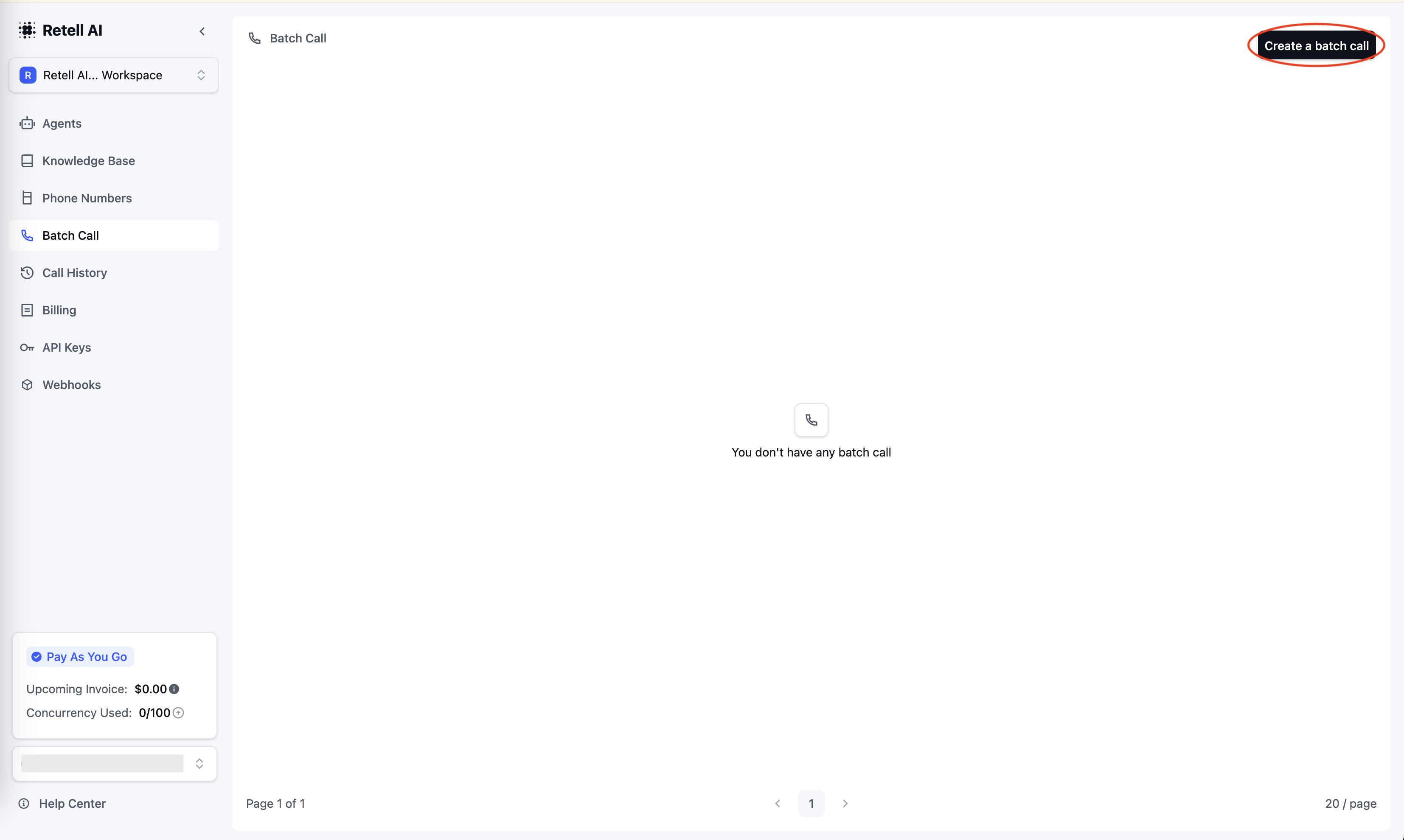
Go to the Batch Call tab in the Retell AI workspace and click the "Create Batch Call" button in the top-right corner.
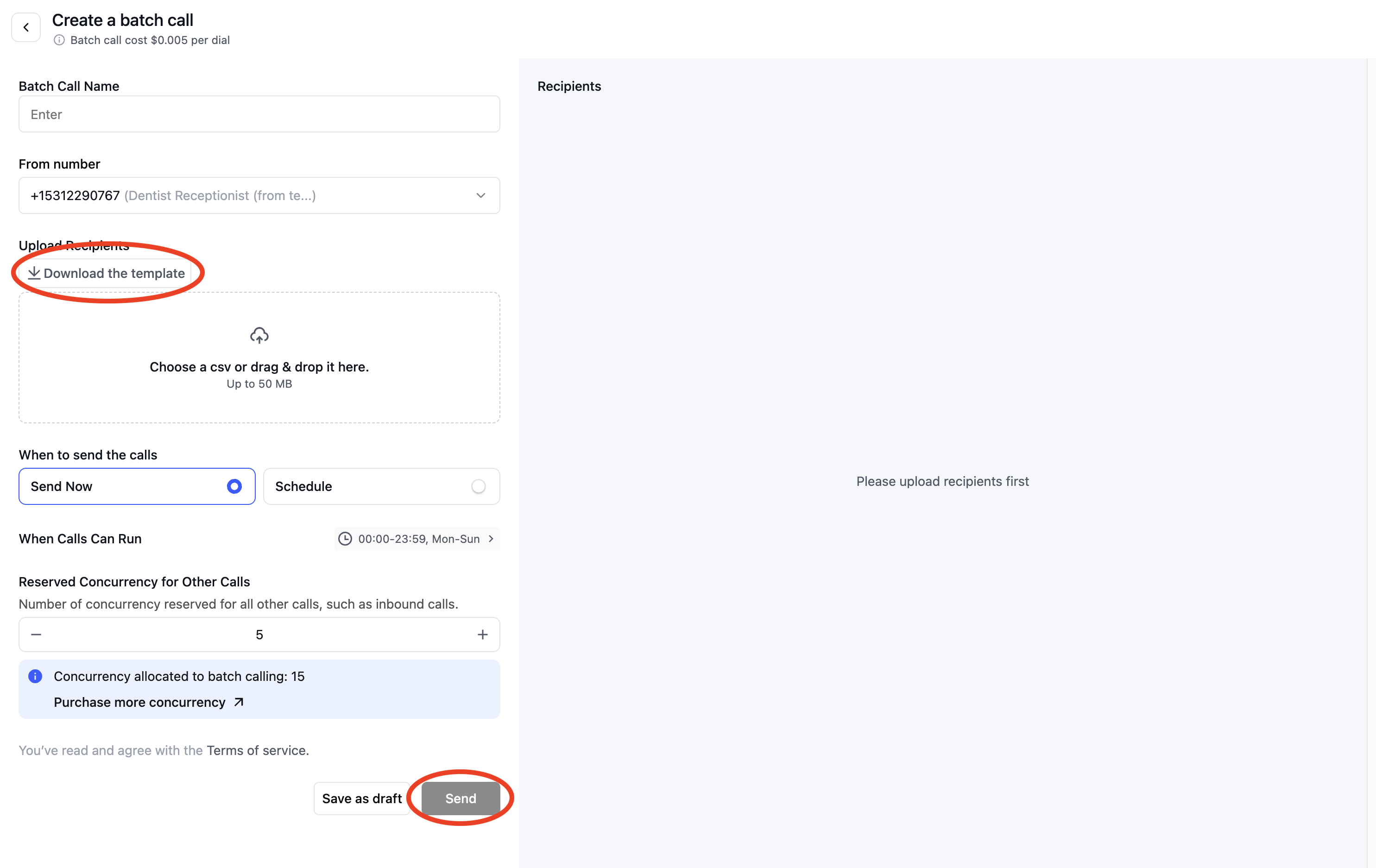
 * Provide a unique name for the batch call to differentiate it from others
* Select the "From Number" from the dropdown menu
* Ensure the number is bound to agents to enable batch calls
* Prepare your recipient list in CSV format with a header row including a "phone number" column
* Use the provided CSV template by clicking "Download the template," or upload your custom file
* Provide a unique name for the batch call to differentiate it from others
* Select the "From Number" from the dropdown menu
* Ensure the number is bound to agents to enable batch calls
* Prepare your recipient list in CSV format with a header row including a "phone number" column
* Use the provided CSV template by clicking "Download the template," or upload your custom file
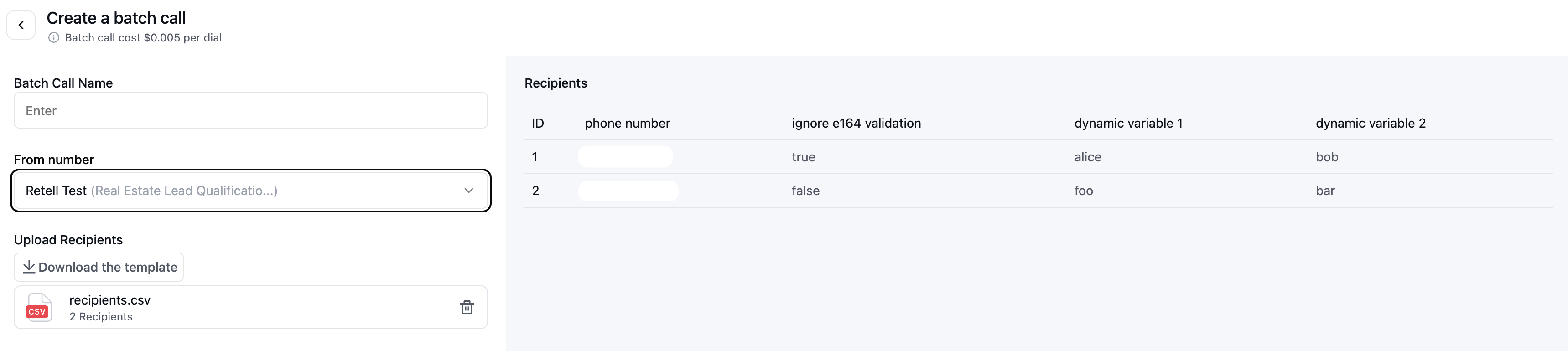
 * For dynamic variables, add additional columns in the CSV with custom data for each recipient (e.g., a column header `first_name` can be referenced as `{{first_name}}`)
* If the number to call is not in E.164 format, you can choose to ignore E.164 validation by adding a column to the CSV named `ignore e164 validation` with value `true`. This only applies when you are using custom telephony and does not apply when you are using Retell Telephony.
The CSV also supports the following optional columns:
* `override agent id`: Override the agent used for this particular call.
* `override agent version`: Override the agent version for this particular call.
* `metadata`: A JSON string to store arbitrary data with the call (e.g., `{"customer_id":"cust_123"}`).
* `custom_sip_headers`: A JSON string of custom SIP headers, keys must start with `X-` (e.g., `{"X-Custom-Header":"value"}`).
* Any other columns are treated as dynamic variables injected into your Response Engine prompt and tool descriptions.
* For dynamic variables, add additional columns in the CSV with custom data for each recipient (e.g., a column header `first_name` can be referenced as `{{first_name}}`)
* If the number to call is not in E.164 format, you can choose to ignore E.164 validation by adding a column to the CSV named `ignore e164 validation` with value `true`. This only applies when you are using custom telephony and does not apply when you are using Retell Telephony.
The CSV also supports the following optional columns:
* `override agent id`: Override the agent used for this particular call.
* `override agent version`: Override the agent version for this particular call.
* `metadata`: A JSON string to store arbitrary data with the call (e.g., `{"customer_id":"cust_123"}`).
* `custom_sip_headers`: A JSON string of custom SIP headers, keys must start with `X-` (e.g., `{"X-Custom-Header":"value"}`).
* Any other columns are treated as dynamic variables injected into your Response Engine prompt and tool descriptions.
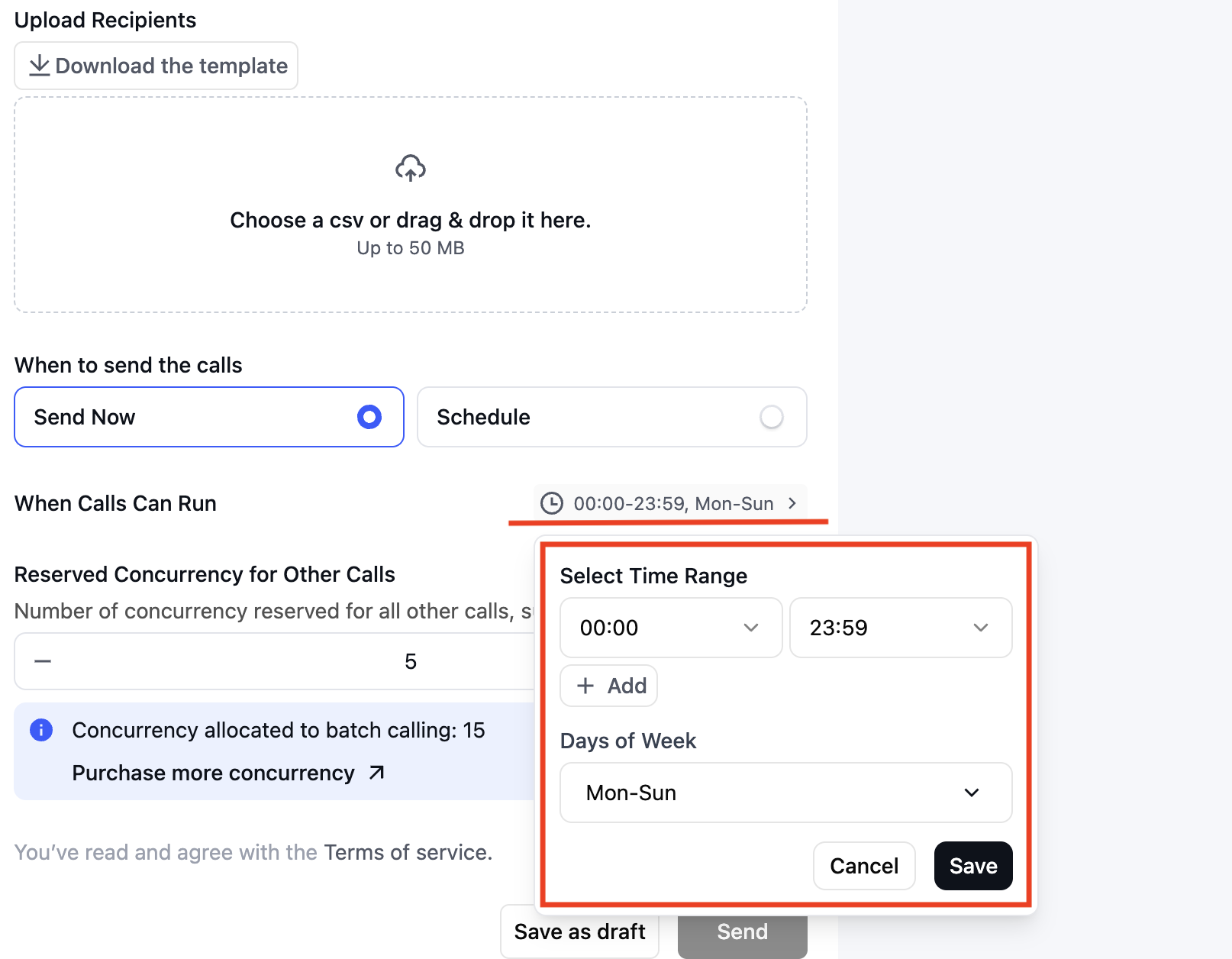
 * Open the configuration modal to define the batch call time windows
 Under "Reserved Concurrency for Other Calls," set how many [concurrency](/deploy/concurrency) slots to hold back for other calls, such as inbound. Type the number directly, or use the − and + buttons. The value must be at least 1 and at most your concurrency limit minus 1. The batch runs on the remaining slots, shown below the field as "Concurrency allocated to batch calling."
* Choose between "Send Now" to start the calls immediately or "Schedule" for a future time
* Click "Save as Draft" to revisit later or "Send" to initiate or schedule the calls
## Monitor batch calls
### Batch call status
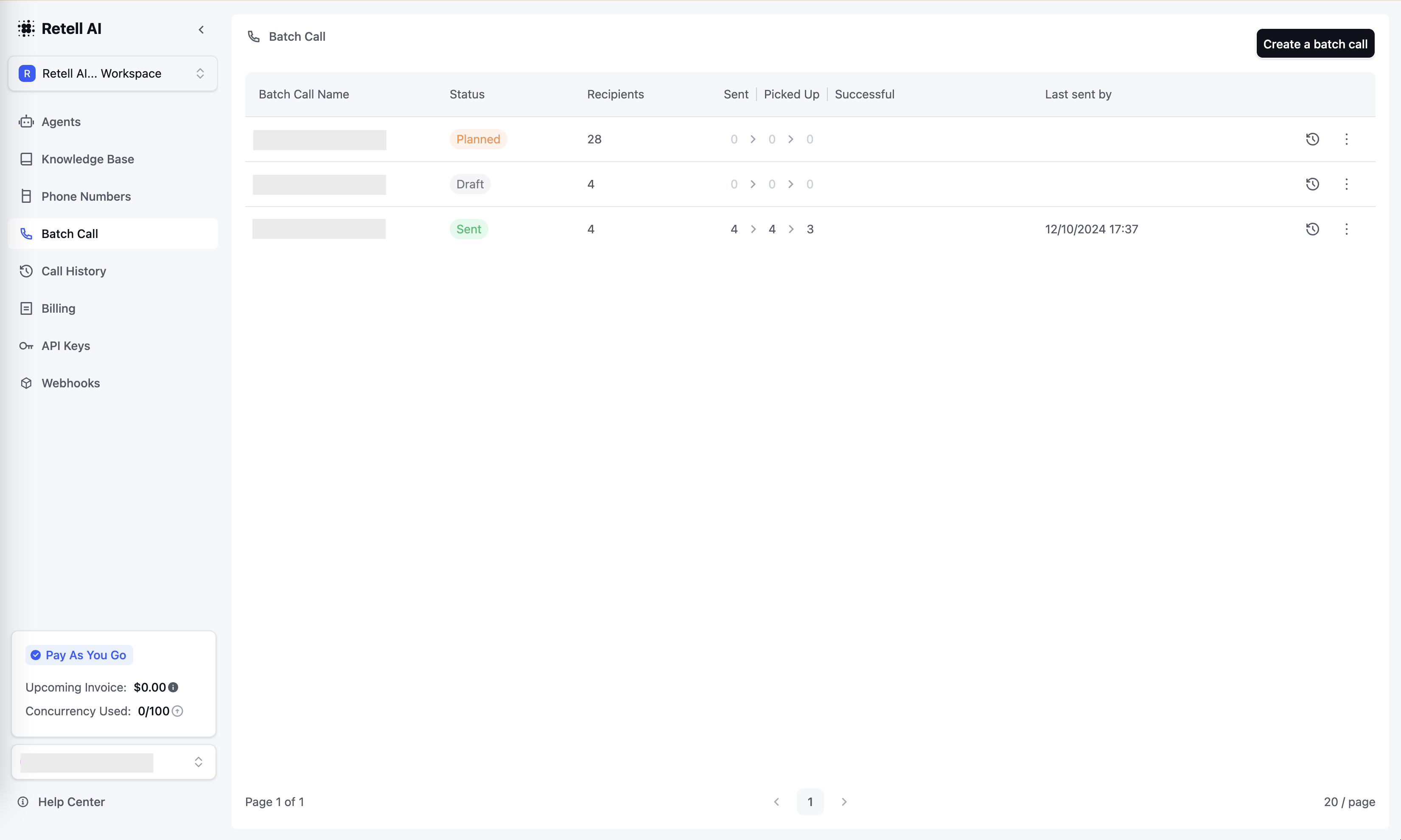
Once your batch calls are created, you can monitor their progress and history in the Batch Call tab. Batch calls are classified by their status:
* Draft: Editable and unsent. Drafts will not trigger any calls until submitted.
* Planned: Scheduled for a future time. These cannot be edited once scheduled.
* Ongoing: Currently in progress, with calls initiated as [concurrency](/deploy/concurrency) slots become available.
* Sent: All calls in the batch have been successfully completed.
### Batch call metrics
You can view the following metrics:
* Sent: Total calls sent from the batch.
* Picked Up: Number of calls answered by recipients.
* Successful: Calls successfully completed based on the predefined criteria.
Under "Reserved Concurrency for Other Calls," set how many [concurrency](/deploy/concurrency) slots to hold back for other calls, such as inbound. Type the number directly, or use the − and + buttons. The value must be at least 1 and at most your concurrency limit minus 1. The batch runs on the remaining slots, shown below the field as "Concurrency allocated to batch calling."
* Choose between "Send Now" to start the calls immediately or "Schedule" for a future time
* Click "Save as Draft" to revisit later or "Send" to initiate or schedule the calls
## Monitor batch calls
### Batch call status
Once your batch calls are created, you can monitor their progress and history in the Batch Call tab. Batch calls are classified by their status:
* Draft: Editable and unsent. Drafts will not trigger any calls until submitted.
* Planned: Scheduled for a future time. These cannot be edited once scheduled.
* Ongoing: Currently in progress, with calls initiated as [concurrency](/deploy/concurrency) slots become available.
* Sent: All calls in the batch have been successfully completed.
### Batch call metrics
You can view the following metrics:
* Sent: Total calls sent from the batch.
* Picked Up: Number of calls answered by recipients.
* Successful: Calls successfully completed based on the predefined criteria.
 ### Call details
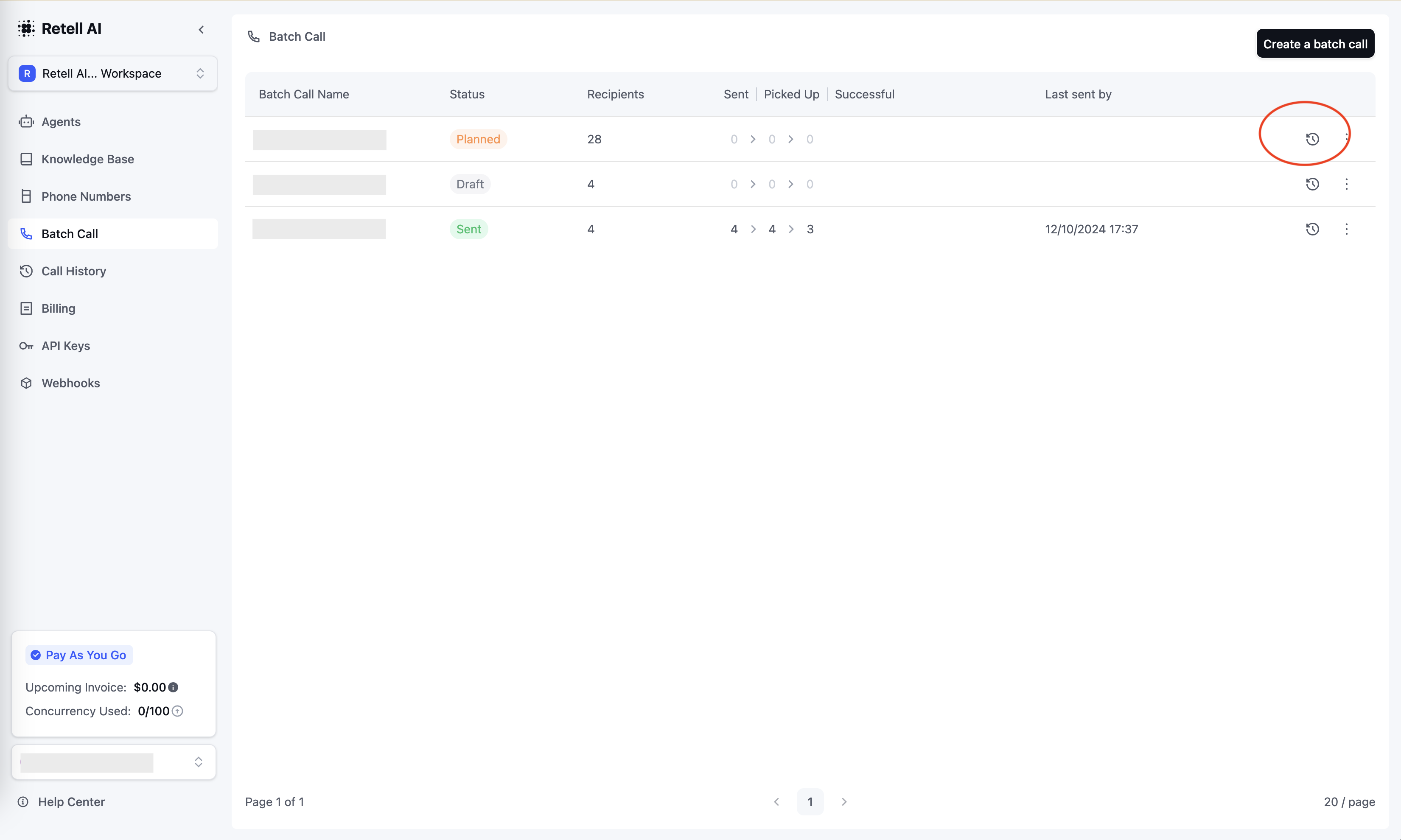
Click the history icon to view the call details of each call in the batch.
### Call details
Click the history icon to view the call details of each call in the batch.
 ## Retrieve individual call IDs from a batch
The [Create Batch Call](/api-references/create-batch-call) response returns a single `batch_call_id` — it does not return the individual `call_id` for each task in the batch. To get the individual calls (for example, to fetch transcripts, recordings, or Post Call Extraction for each one), query the [List Calls](/api-references/list-calls) API and filter by `batch_call_id`:
```json theme={"dark"}
{
"filter_criteria": {
"batch_call_id": {
"type": "string",
"op": "eq",
"value": "batch_call_dbcc4412483ebfc348abb"
}
}
}
```
Each item in the response is a full call object with its own `call_id`, transcript, and analysis fields. You can then pass any `call_id` to the [Get Call](/api-references/get-call) API for the complete record.
If you need to correlate each call in the batch back to your own records (for example, a customer ID from your CRM), pass a `metadata` JSON column in the CSV upload or a `metadata` object on each task in the API request. It is stored verbatim on the call and returned by both List Calls and Get Call — no LLM inference required.
## FAQ
Only while it's a draft. Draft batches are editable and don't trigger any calls until submitted. Once a batch is planned (scheduled for a future time), it can't be edited.
Add a column per variable in the CSV. Any column that isn't a reserved field becomes a dynamic variable injected into your Response Engine prompt and tool descriptions — for example, a `first_name` column is referenced as `{{first_name}}`.
The Create Batch Call response returns only a `batch_call_id`. To fetch per-call transcripts, recordings, or analysis, query [List Calls](/api-references/list-calls) filtered by `batch_call_id`. See [Retrieve individual call IDs from a batch](#retrieve-individual-call-ids-from-a-batch) above.
## Retrieve individual call IDs from a batch
The [Create Batch Call](/api-references/create-batch-call) response returns a single `batch_call_id` — it does not return the individual `call_id` for each task in the batch. To get the individual calls (for example, to fetch transcripts, recordings, or Post Call Extraction for each one), query the [List Calls](/api-references/list-calls) API and filter by `batch_call_id`:
```json theme={"dark"}
{
"filter_criteria": {
"batch_call_id": {
"type": "string",
"op": "eq",
"value": "batch_call_dbcc4412483ebfc348abb"
}
}
}
```
Each item in the response is a full call object with its own `call_id`, transcript, and analysis fields. You can then pass any `call_id` to the [Get Call](/api-references/get-call) API for the complete record.
If you need to correlate each call in the batch back to your own records (for example, a customer ID from your CRM), pass a `metadata` JSON column in the CSV upload or a `metadata` object on each task in the API request. It is stored verbatim on the call and returned by both List Calls and Get Call — no LLM inference required.
## FAQ
Only while it's a draft. Draft batches are editable and don't trigger any calls until submitted. Once a batch is planned (scheduled for a future time), it can't be edited.
Add a column per variable in the CSV. Any column that isn't a reserved field becomes a dynamic variable injected into your Response Engine prompt and tool descriptions — for example, a `first_name` column is referenced as `{{first_name}}`.
The Create Batch Call response returns only a `batch_call_id`. To fetch per-call transcripts, recordings, or analysis, query [List Calls](/api-references/list-calls) filtered by `batch_call_id`. See [Retrieve individual call IDs from a batch](#retrieve-individual-call-ids-from-a-batch) above.