> ## Documentation Index
> Fetch the complete documentation index at: https://docs.retellai.com/llms.txt
> Use this file to discover all available pages before exploring further.
# Post Call Extraction overview and categories
> Retell Post Call Extraction automatically scores and structures customer calls after they end — built-in categories plus custom analysis for your workflow.
Post Call Extraction runs after a call ends. It reads the transcript with an LLM and writes structured results onto the call's `call_analysis` object, so you can filter, report on, or sync insights to your CRM without manually reviewing each conversation.
 ## How it works
1. The call ends and Retell fires the `call_ended` webhook.
2. Retell analyzes the transcript against your agent's Post Call Extraction configuration.
3. Retell fires the `call_analyzed` webhook. The `call_analysis` object is now populated on the call.
Because analysis runs after `call_ended`, the `call_ended` payload does not include `call_analysis`. Read results from the `call_analyzed` webhook or the [Get Call API](/api-references/get-call). See [Consume the analysis data](/features/post-call-analysis-consumption).
Retell does not populate custom Post Call Extraction fields for calls that were not connected or where no conversation took place. Check whether the field exists before using it.
## Built-in fields
Every call includes these built-in analysis fields. You can customize the prompts behind `call_summary` and `call_successful` and [rerun analysis](/features/rerun-call-analysis) on past calls.
* `call_summary` — high-level summary of the conversation.
* `user_sentiment` — the caller's overall sentiment.
* `call_successful` — whether the call met the success criteria you define.
* `in_voicemail` — whether the agent reached a voicemail instead of a live person.
## Custom analysis categories
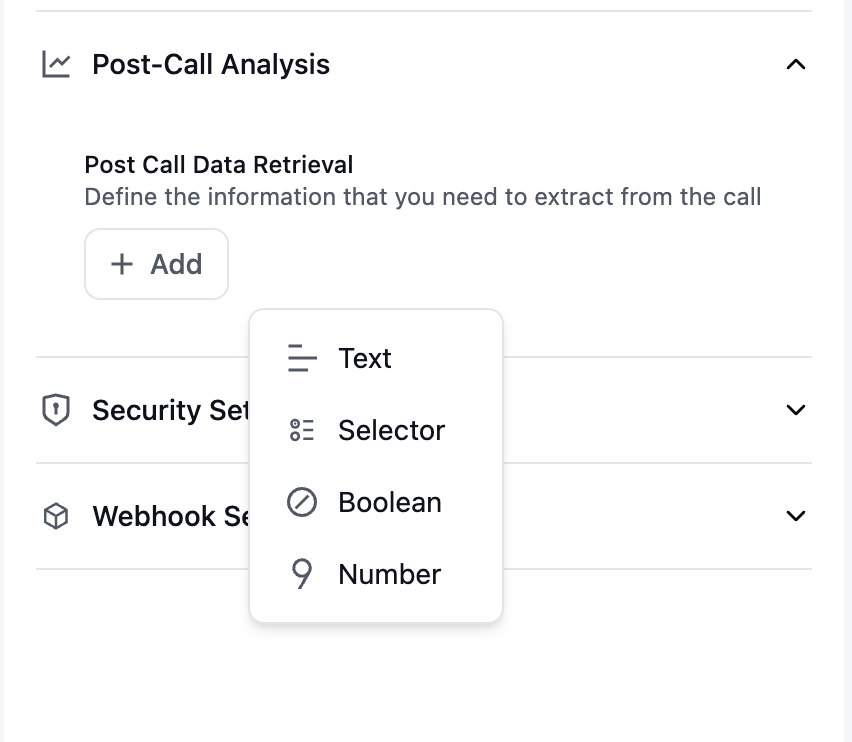
Define your own fields on the agent's **Post-Call Data Extraction** tab. Each field has a name, a description that tells the LLM what to extract, and one of four types:
| Type | Returns | Use for |
| ------------ | --------------------------- | ------------------------------------------------------------------------ |
| **Boolean** | `true` / `false` | Yes/no determinations, like whether the customer is a first-time caller. |
| **Text** | String | Free-form output, like a custom summary or extracted action items. |
| **Number** | Numeric value | Quantitative values, like a transaction amount or satisfaction score. |
| **Selector** | One value from a fixed list | Categorization, like issue type or resolution status. |
To set up your first custom field, see [Define the information you want to extract](/features/post-call-analysis-create).
## Next steps
* [Define the information you want to extract](/features/post-call-analysis-create) — create custom fields on your agent.
* [Consume the analysis data](/features/post-call-analysis-consumption) — read results from the dashboard, `call_analyzed` webhook, or Get Call API.
* [Rerun Post Call Extraction](/features/rerun-call-analysis) — regenerate results after editing your prompts.
To follow or step into calls while they're still in progress, see [Live monitoring](/features/live-monitoring).
To score call quality across a sampled set of calls (hallucinations, resolution rate, latency, and more), see [AI Quality Assurance](/ai-qa/overview). You can also use Post Call Extraction fields as filters when [defining a QA cohort](/ai-qa/create-cohort).
## How it works
1. The call ends and Retell fires the `call_ended` webhook.
2. Retell analyzes the transcript against your agent's Post Call Extraction configuration.
3. Retell fires the `call_analyzed` webhook. The `call_analysis` object is now populated on the call.
Because analysis runs after `call_ended`, the `call_ended` payload does not include `call_analysis`. Read results from the `call_analyzed` webhook or the [Get Call API](/api-references/get-call). See [Consume the analysis data](/features/post-call-analysis-consumption).
Retell does not populate custom Post Call Extraction fields for calls that were not connected or where no conversation took place. Check whether the field exists before using it.
## Built-in fields
Every call includes these built-in analysis fields. You can customize the prompts behind `call_summary` and `call_successful` and [rerun analysis](/features/rerun-call-analysis) on past calls.
* `call_summary` — high-level summary of the conversation.
* `user_sentiment` — the caller's overall sentiment.
* `call_successful` — whether the call met the success criteria you define.
* `in_voicemail` — whether the agent reached a voicemail instead of a live person.
## Custom analysis categories
Define your own fields on the agent's **Post-Call Data Extraction** tab. Each field has a name, a description that tells the LLM what to extract, and one of four types:
| Type | Returns | Use for |
| ------------ | --------------------------- | ------------------------------------------------------------------------ |
| **Boolean** | `true` / `false` | Yes/no determinations, like whether the customer is a first-time caller. |
| **Text** | String | Free-form output, like a custom summary or extracted action items. |
| **Number** | Numeric value | Quantitative values, like a transaction amount or satisfaction score. |
| **Selector** | One value from a fixed list | Categorization, like issue type or resolution status. |
To set up your first custom field, see [Define the information you want to extract](/features/post-call-analysis-create).
## Next steps
* [Define the information you want to extract](/features/post-call-analysis-create) — create custom fields on your agent.
* [Consume the analysis data](/features/post-call-analysis-consumption) — read results from the dashboard, `call_analyzed` webhook, or Get Call API.
* [Rerun Post Call Extraction](/features/rerun-call-analysis) — regenerate results after editing your prompts.
To follow or step into calls while they're still in progress, see [Live monitoring](/features/live-monitoring).
To score call quality across a sampled set of calls (hallucinations, resolution rate, latency, and more), see [AI Quality Assurance](/ai-qa/overview). You can also use Post Call Extraction fields as filters when [defining a QA cohort](/ai-qa/create-cohort).