> ## Documentation Index
> Fetch the complete documentation index at: https://docs.retellai.com/llms.txt
> Use this file to discover all available pages before exploring further.
# Manually test your agent
> Test a Retell agent in the LLM Playground: chat manually or with an AI-simulated user, inspect tool calls and transitions, and replay any turn.
The LLM Playground lets you test your agent in text in the dashboard, without placing a web or phone call. It's the Test LLM tab in your agent's Test panel, and it has two modes: Manual Chat, where you type each turn yourself, and AI Simulated Chat, where an AI plays the user from a prompt.
For example, after adding a "reschedule appointment" path, open the Playground, ask to reschedule, and confirm the agent calls `check_availability` with the right date before you ever test it on a call.
## Open the Playground
In the agent editor, open the Test panel and select the Test LLM tab. The panel's other tab, Test Audio, is for [live voice testing](/test/test-web). The Test LLM tab isn't available for [custom LLM](/integrate-llm/overview) agents or speech-to-speech voice agents.
You can also open the same Playground from four other places. The first three each load an existing transcript into it with View In Test Playground:
* A call's details panel in your [Call History](/features/session-history), or a conversation's details panel in Chat History.
* A call's details panel in [AI QA](/ai-qa/overview).
* A run's details panel in [Batch Testing History](/test/batch-test-simulation).
* The Test Subflow tab inside a [Conversation Flow](/build/conversation-flow/overview) component, to test that component on its own.
 ## Chat with the agent manually
Choose
## Chat with the agent manually
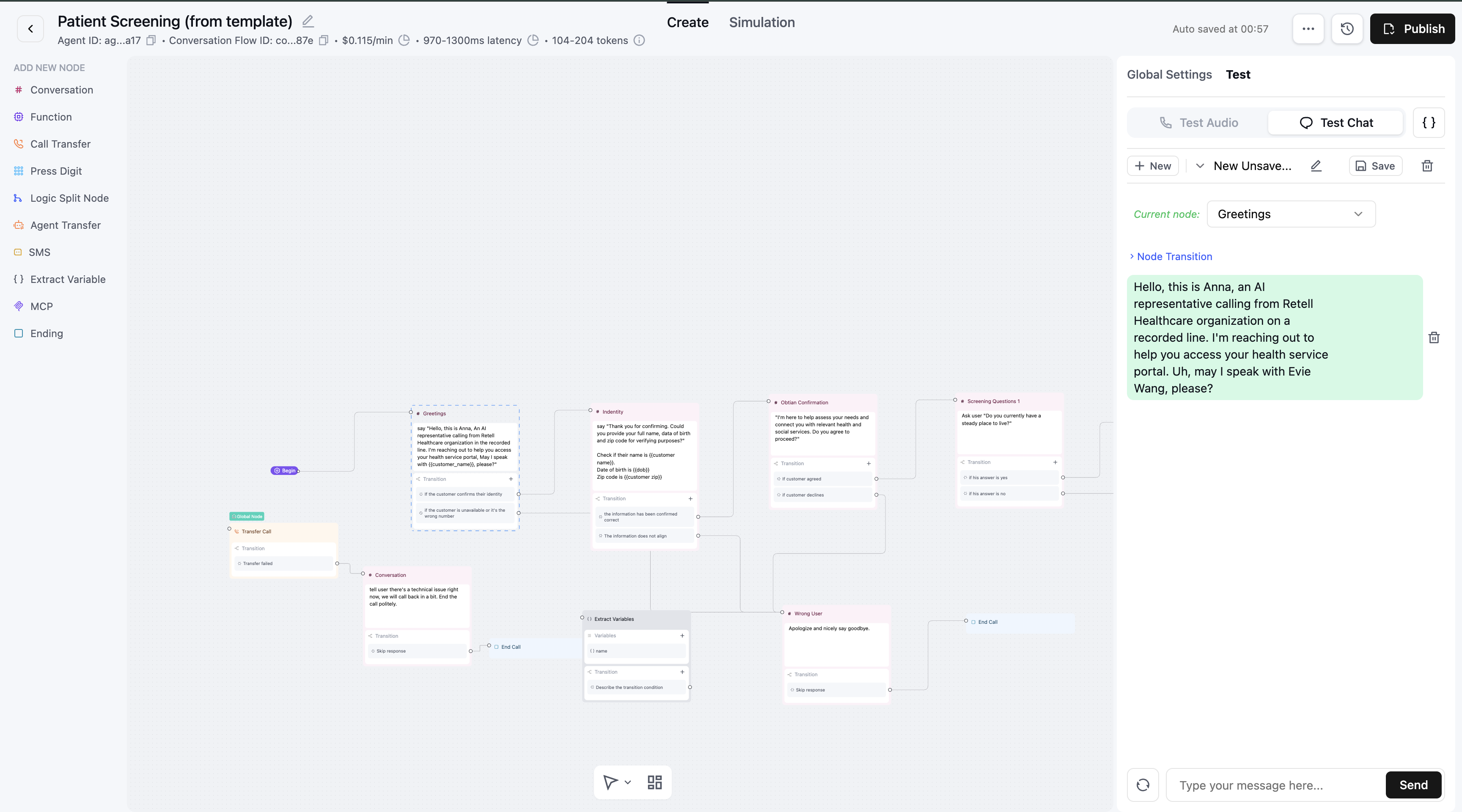
Choose Manual Chat to drive the conversation yourself. Type each turn the user would say and read the agent's response. It doesn't grade anything: it's for exploring behavior turn by turn. Every turn shows the agent's node transitions, tool invocations, and tool results inline, so you see what the agent did, not just what it said.
For a multi-prompt or Conversation Flow agent, the Current State or Current Node selector above the transcript sets where the conversation sits. Use it to start partway through the flow instead of at the beginning, and to jump the conversation elsewhere mid-chat, which saves talking your way to a branch you want to check.
New takes you back to the Manual Chat and AI Simulated Chat choice, where selecting Manual Chat again starts a fresh conversation. Save keeps the current conversation as a thread, and you rename it with the pencil next to the thread name. The trash icon appears once a thread is saved and deletes it. Use the dropdown on the thread name to switch between saved threads and compare runs.
## Simulate a user
Choose AI Simulated Chat to have an AI play the caller. It asks for two things: a user prompt (who the caller is and what they want) and the LLM setting (the model that plays the user). The run also picks up whatever dynamic variables and function mocks you've set in the Dynamic Variables dropdown, so set those first if the scenario needs them. Run it to watch the agent and the simulated user talk in real time, with node transitions, tool invocations, and tool results shown along the way.
A good user prompt spells out who the caller is, what they want, and how they behave:
```markdown wrap theme={"dark"}
## Identity
Your name is Mike.
Your date of birth is June 10, 1999.
Your order number is 7891273.
## Goal
Your primary objective is to return the package you received and get a refund.
## Personality
You are a patient customer. However, if the conversation becomes too long or complicated, you will show signs of impatience. If the issue remains unresolved, you may become frustrated and angry.
```
From there you can retry the run, stop it mid-conversation, or edit the user prompt and run it again. To keep a scenario, click Save. A dialog opens for you to add the test case's success criteria, dynamic variables, and custom function mocks without leaving the page. The saved case then appears in the [Simulation tab's](/test/llm-simulation-testing) Test Cases list, ready to rerun or [batch](/test/batch-test-simulation).
## Test Playground
The Playground can change a conversation turn by turn. Open a transcript in it from [Batch Testing History](/test/batch-test-simulation), your [Call History](/features/session-history), Chat History, or [AI QA](/ai-qa/overview): open the details and click View In Test Playground. The agent opens in a new tab with that transcript loaded into Manual Chat, which is the editable mode. From there you can:
* **Edit a user turn.** Confirming the edit truncates the conversation there and continues from your new wording.
* **Rerun an agent response**, which also drops the turns below it.
* **Delete a single turn** without touching the rest of the transcript.
* **Replay the whole chat** with the refresh button below the transcript, which clears the agent's responses and resends every user turn in order against the current configuration.
* **Type a new turn** to carry the conversation on by hand.
A transcript loaded from history arrives as an ended conversation, so Send is disabled at first. Edit a turn, delete one, or rerun an agent response and the input unlocks.
Every turn still shows node transitions, tool invocations, and results, which makes this the way to debug a Conversation Flow turn by turn, especially for edge cases you can't reach from a fresh chat.
## Set dynamic variables and mocks
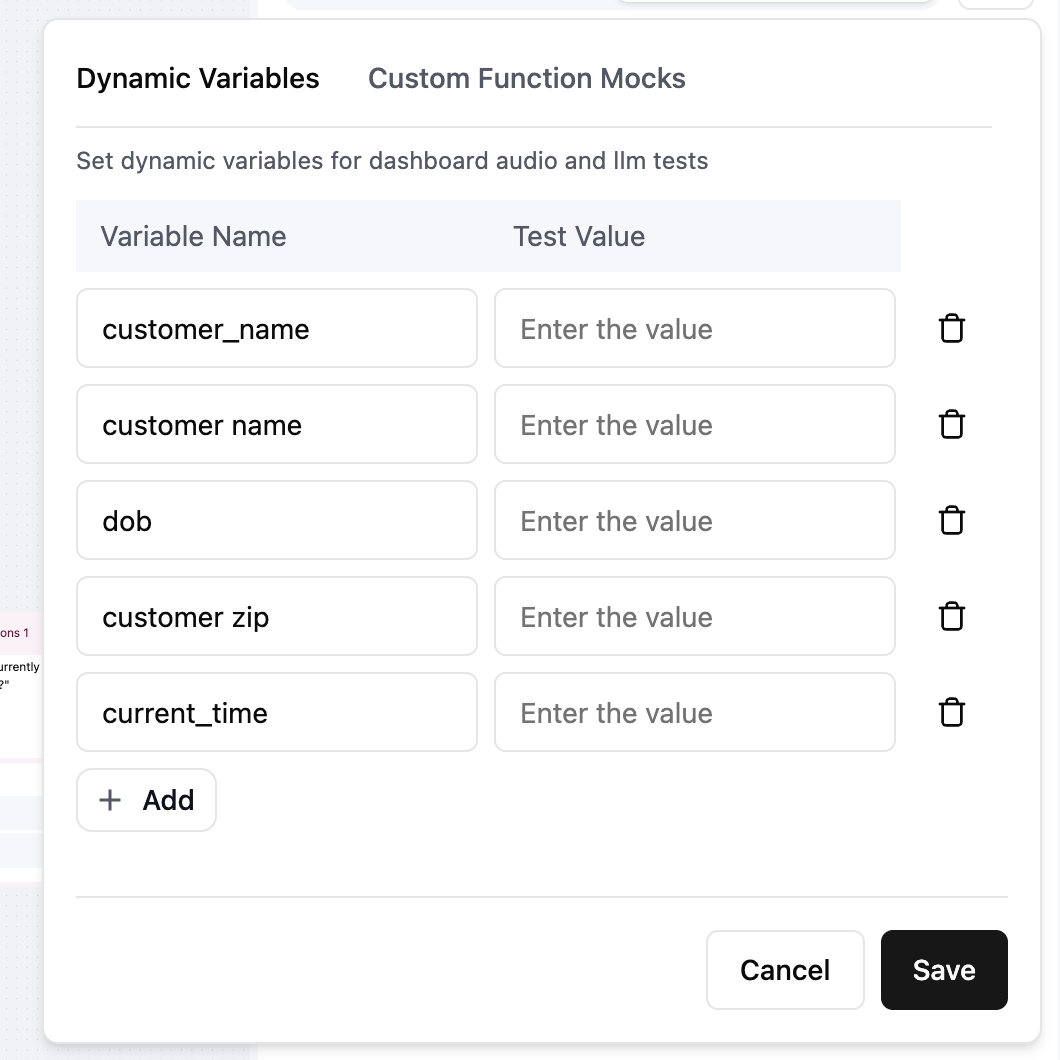
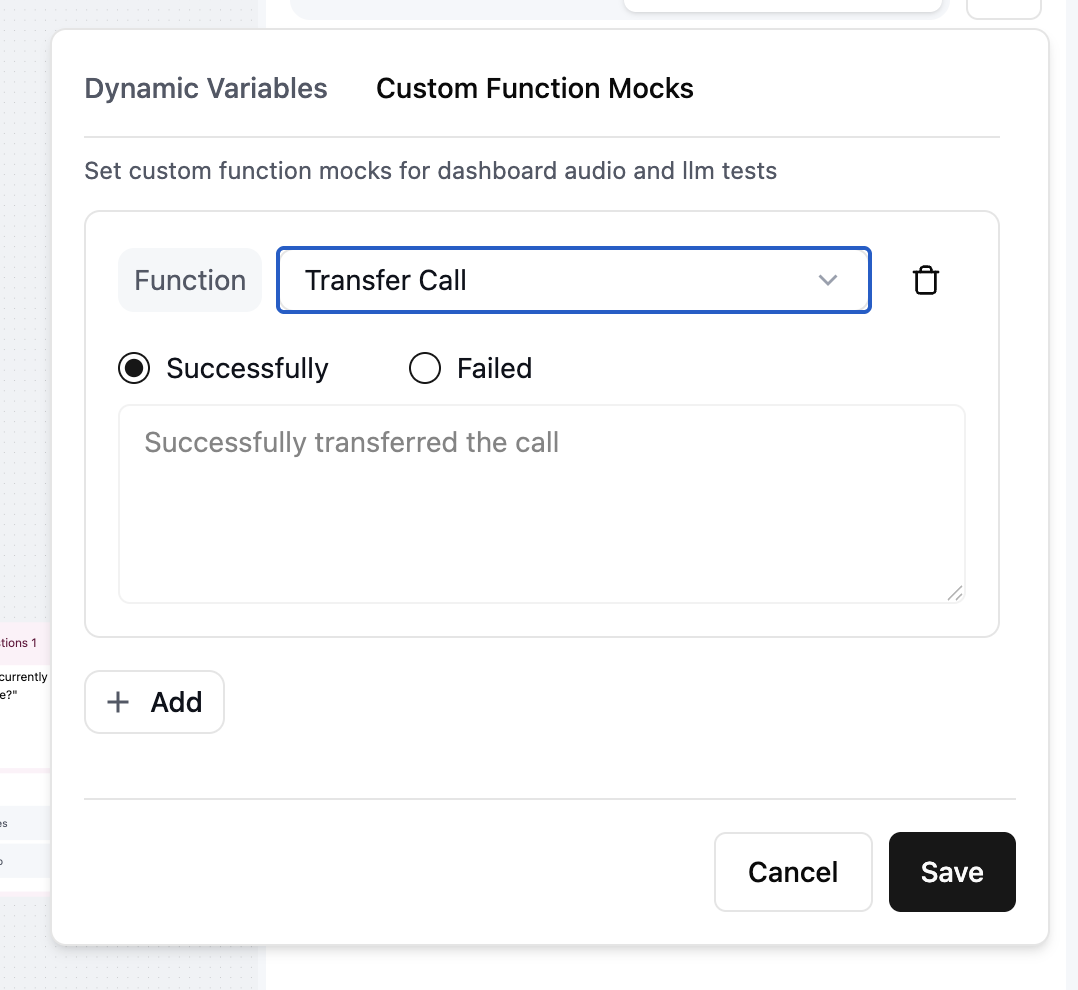
Open the Test Inputs dropdown next to the tabs to set inputs before you chat, then click Save to apply them. It has two tabs:
* Dynamic variables: give each [dynamic variable](/build/dynamic-variables) a test value so placeholders resolve the way they would on a real call.
* Custom function mocks: set a pretend result for one of your agent's functions. Your agent uses functions to do real things, like check availability, transfer a call, or send a text. A mock lets you tell the test what a function should return, so the agent reacts to that answer and the real action never runs.
These values apply to both Test LLM and Test Audio runs for this agent. They're kept in your browser rather than on the agent, so they don't follow the agent to a teammate or to another machine.
Both are covered in detail in [test variables and mocks](/test/llm-simulation-testing#test-variables-and-mocks).
 ## Debug a response
When a reply looks off, click the
## Debug a response
When a reply looks off, click the Debug button on that turn. Debug can regenerate the answer 10 times and show a count of how often each response came up, so you can see the agent's most common outputs on a non-deterministic turn. For the full fix workflow (finetune examples, node splits, temperature), see [Debug your agent response](/test/llm-playground-debug).
## Best practices
* Start simple, then work up to harder scenarios and edge cases.
* Mock the functions that take real action, like transferring a call or sending a text, so the test uses your pretend result and nothing actually happens.
* Use tool-call inspection to confirm parameters, not just the final wording.
* Save the threads worth revisiting, and turn the important ones into [simulation test cases](/test/llm-simulation-testing) for regression testing.
## Next steps
* [Debug your agent response](/test/llm-playground-debug) when a reply or transition is off.
* [Simulation testing](/test/llm-simulation-testing) saves scenarios as graded, rerunnable test cases.
* [Testing overview](/test/test-overview) compares the Playground with simulation and live call testing.