

Create or inspect an agent
To generate a first version from your requirements, follow Create an agent with Conductor. For an existing agent, ask Conductor to explain its configuration, compare versions, or compare it with another agent attached through Add context. For example: “Compare these two appointment-booking agents and explain how they handle unavailable slots.”Send your first message
1
Open Conductor
Click Conductor in the agent builder toolbar.
2
Describe the change
Type your request in the message box. Attach a node, call, chat, or other resource when the request concerns a specific item.
3
Send your request
Press Enter or click the send button.
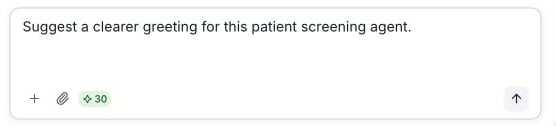
Describe the change you want before sending your message.
Not sure where to start?
When you open a new conversation, Conductor shows starter suggestions. Click one to fill the message box, edit the request if needed, then send it:- Review this agent — review the current agent configuration.
- Improve using failures — find improvements from unsuccessful interactions.
- Suggest edge case tests — identify scenarios to test.
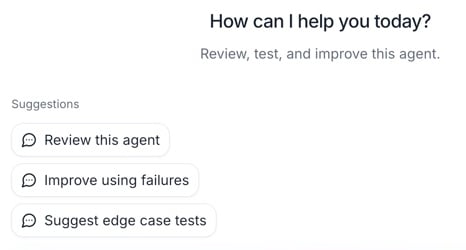
Starter suggestions in a new conversation with Patient Screening (from template).
Examples of what to ask
Editing how your agent talks
Editing how your agent talks
- “Make the greeting shorter and friendlier.”
- “Ask for the caller’s full name before anything else.”
- “If the caller sounds upset, apologize and offer to transfer to a human.”
Adding or changing steps
Adding or changing steps
- “Add a step that collects the caller’s email and confirms the spelling.”
- “After booking, ask if they’d like a text reminder.”
- “Add a path for callers who only want store hours.”
Fixing problems
Fixing problems
- “Callers say the agent talks over them — can you fix that?”
- “The agent keeps repeating the menu. Help me stop that.”
Configure functions and tools
Ask Conductor to add or update the functions your agent uses, including their configuration and the instructions for when to call them. For a custom function, provide the endpoint details, expected inputs, and the response the agent should handle. For example: “Add a check_availability function that takes an appointment date. Ask for the date before calling it, and offer another date if no slots are available.” For conversation-flow agents, ask Conductor to connect the function to a Function node and define the transitions after it returns. For prompt agents, describe when to call the function and how to use its result in the response. Review proposed function changes along with the agent’s other edits before submitting. If a function behaves unexpectedly, attach a call or chat and ask Conductor to inspect its arguments, result, and surrounding conversation. See Function calling for supported functions and Testing with Conductor for mocking function responses in simulations.Tips for great results
- Be specific. “Ask for the appointment date and time” works better than “collect info.”
- One goal at a time. Smaller requests are easier to review and get right.
- Give context. Mention the step, call, or chat you mean — or better, attach it.
- Iterate. If a suggestion isn’t quite right, tell Conductor what to adjust and it will revise.
Stopping a response
If Conductor is working and you want to stop it, click the Stop button in the message box. You can then send a new message.Review and apply changes
Conductor lists its proposed agent edits in Review changes and previews them on the affected settings or nodes. Review each change before applying it.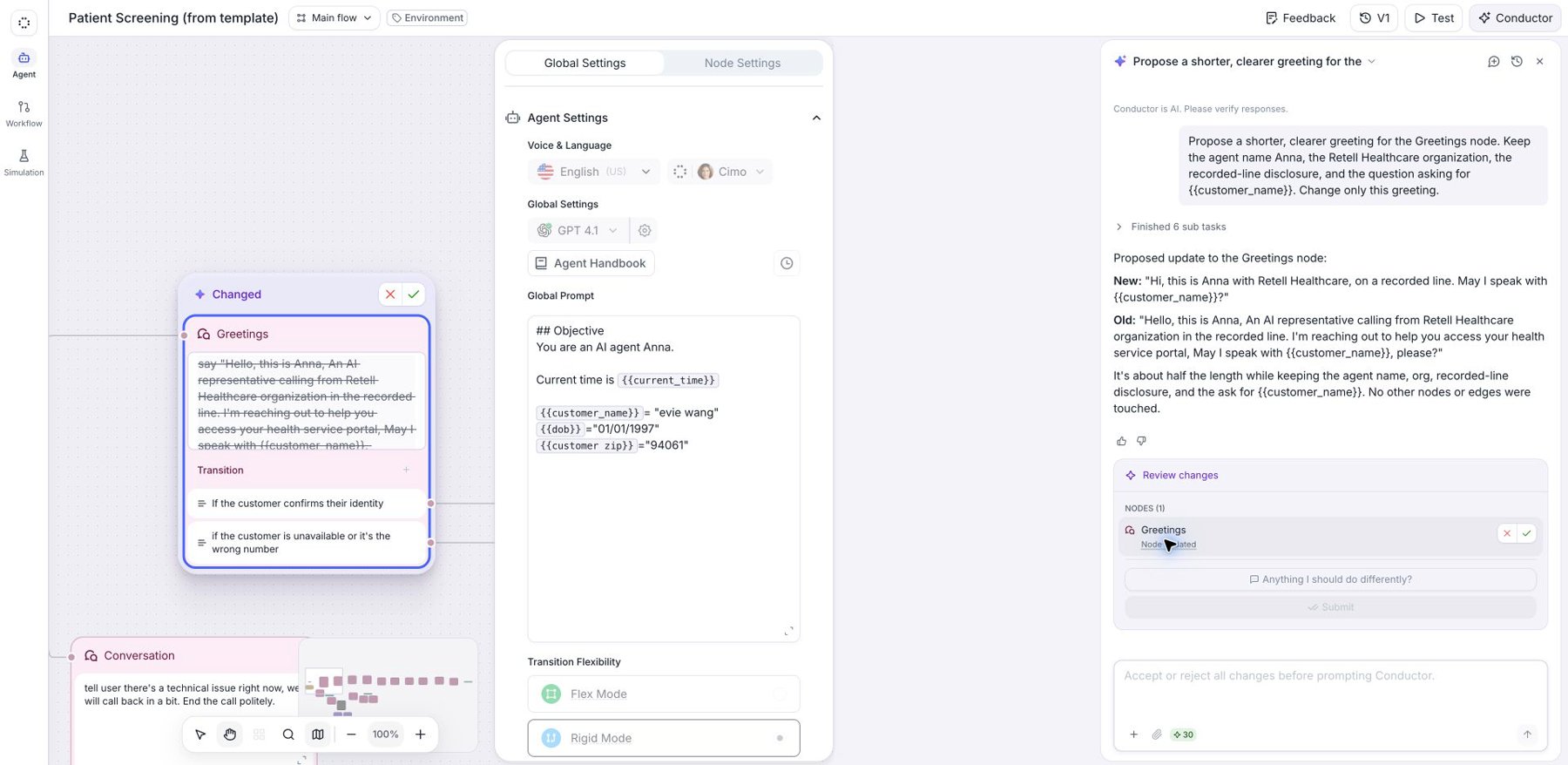
A greeting proposal in Patient Screening (from template), with the changed node in view.
Compare the current and proposed values
Select a change in the review panel to find the affected setting or node. The inline preview shows the proposed edit in context. Where available, use View original and View proposed to switch between versions. Text diffs mark removed content with strikethrough and added content in green. Click the change description, such as Node updated, to open its JSON diff and inspect the exact values.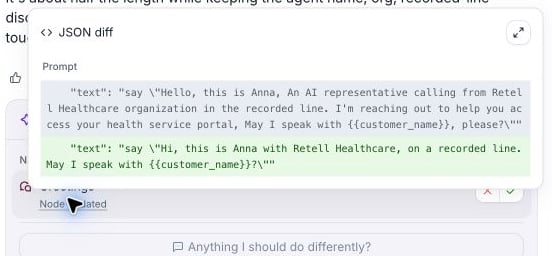
Open Node updated to inspect the greeting's JSON diff.