

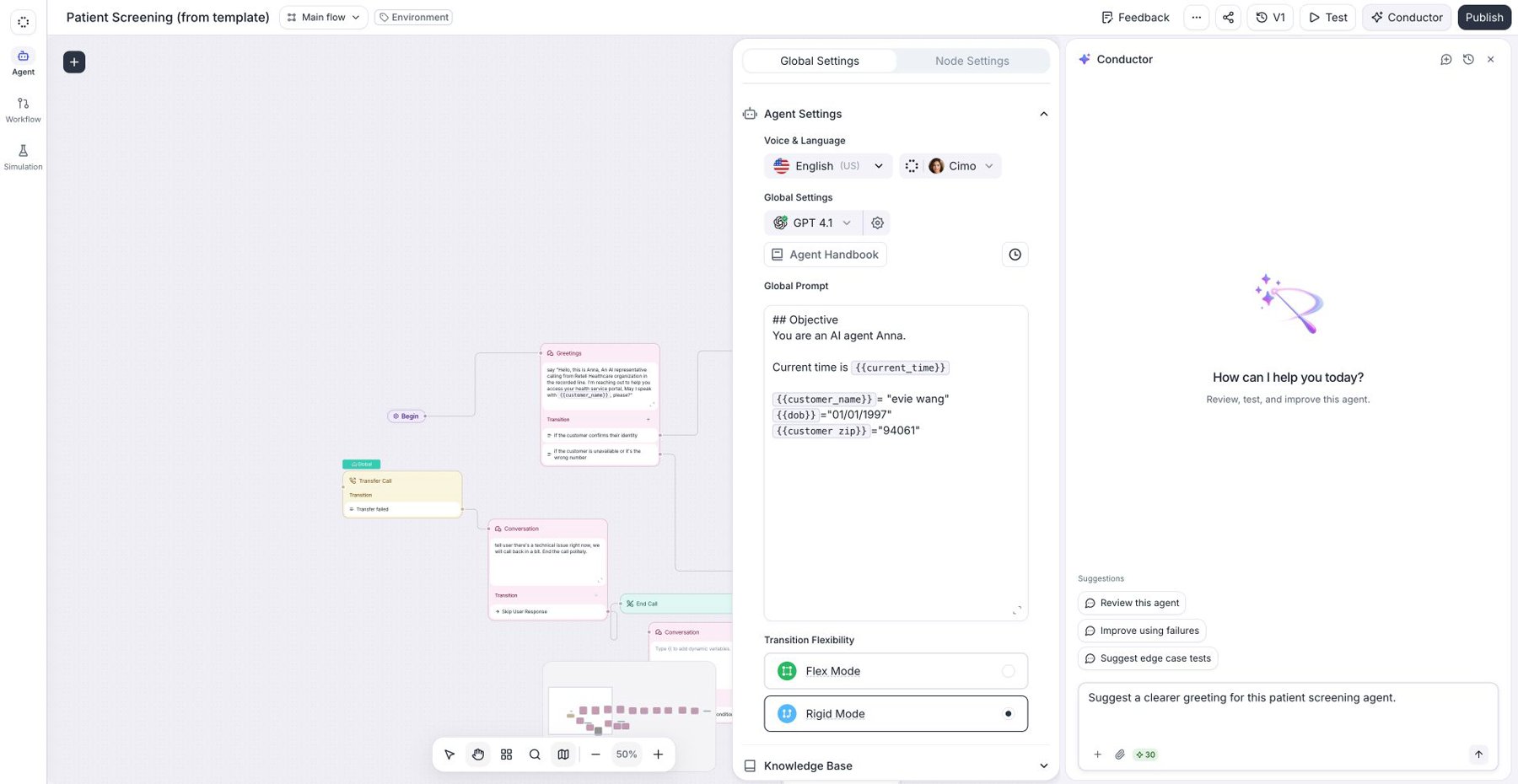
Conductor open beside Patient Screening (from template).
How to open Conductor
- From an agent: click Conductor in the agent builder toolbar.
- From Analytics and other dashboard pages: click Ask Conductor to open the panel alongside the page.
- From Home: start typing in the Conductor message box; no agent needs to be open.
Work across dashboard pages
Conductor is available on every dashboard page and uses the current page as context. You can attach other resources to compare agents or investigate conversations across your workspace. Conductor’s replies can include navigation cards with a View button. Click View to open the resource and continue the same conversation there. For example, ask “Show unsuccessful calls from last week” to get a Call History link with those filters applied.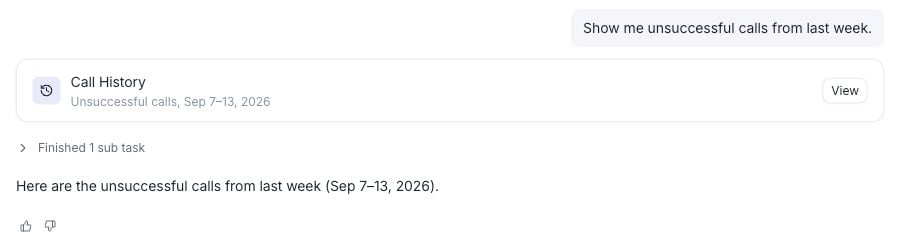
Click View to open the resource and continue your Conductor conversation there.
Give Conductor context
Attach resources or files when your request concerns a specific item. They appear as context chips above the message box. For example, attach two appointment-booking agents and ask how they handle rescheduling differently.How to attach context
1
Open the resource selector
Click Add context (+) in the Conductor message box.
2
Choose resources
Choose a category, such as Agents or Call History, then click an item to attach it.To attach several items from a category, click Multi-select, check the items, and click Save. Repeat for other categories as needed.
3
Review and send
Check the context chips above the message box, type your request, and send it.
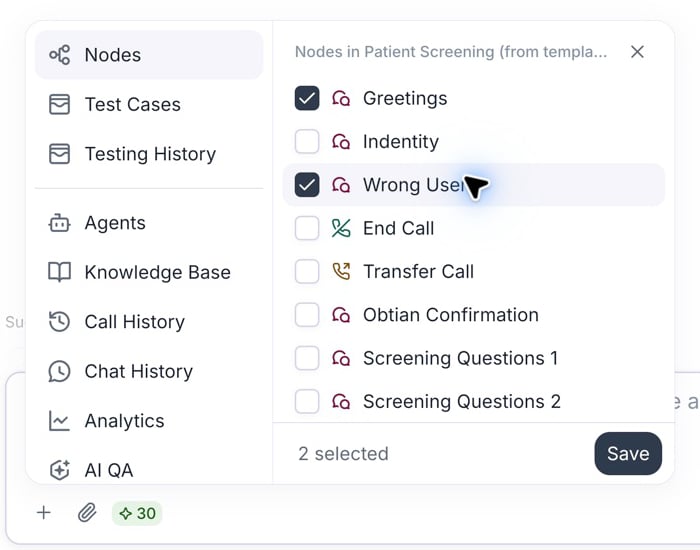
Choose several resources with Multi-select, then click Save.
What can you attach?
The available categories depend on your permissions and the page you have open.
With Conductor open in a conversation-flow agent, you can also click a node on the canvas to attach it.
For a targeted edit, attach the “Collect email” node and ask, “Make this step confirm the spelling back to the caller.” To investigate a failed test, attach its test case or run and ask what needs to change.
Select text anywhere in the UI
Highlight text anywhere in the dashboard to give Conductor context about what you’re reading. For example, highlight Voice & Language in an agent’s settings and ask, “Explain how this setting affects my agent.” The selection appears as a character-count chip above the message box. Check that the chip appears before sending. If it says Selection too large, select a smaller passage.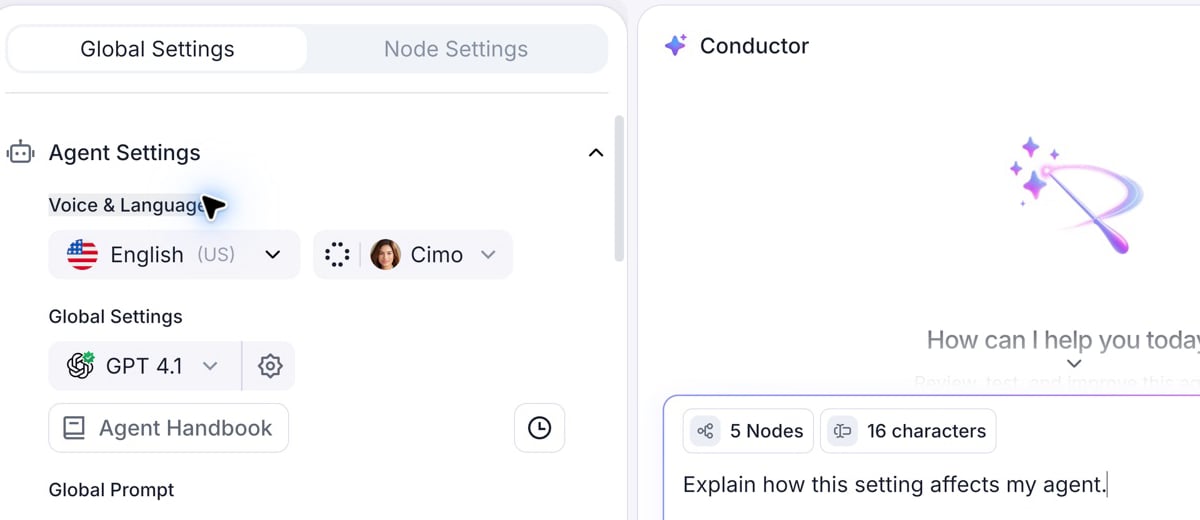
Selecting Voice & Language adds a 16 characters chip to Conductor.
Select calls and chats from history
On Call History or Chat History, click Select, check the conversations, and open Conductor. The selected rows appear as context chips. Ask, for example, “What do these conversations have in common?”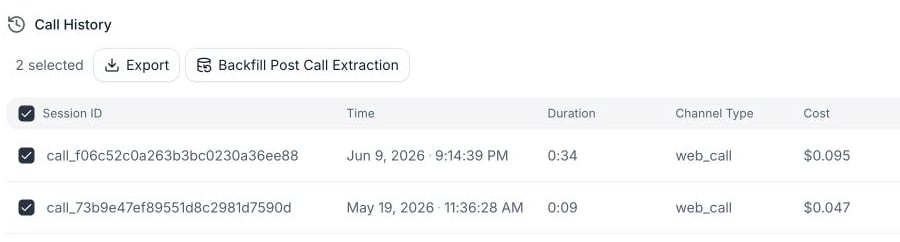
Two calls selected from the Patient Screening template agent’s history.
Attach files
Click the paperclip in the message box to upload files, or drag and drop files directly into the message box. You can also paste an image from your clipboard. Supported file types: images (JPG, JPEG, PNG, GIF, WebP), PDF, and text-based files (TXT, CSV, HTML, HTM, MD, RTF, JSON). Limits: up to 10 files per message, each 50 MB or smaller (as of September 2026). Conductor identifies files it cannot attach because of their type, size, or the file-count limit. For example, attach your appointment policy and ask Conductor to use it when refining your agent.Review proposed changes
Conductor previews proposed agent and dashboard edits for your review. Compare the current and proposed values, accept or reject each change, then submit. See agent change review or dashboard proposals for the steps. If a proposal belongs to another page, click Open this agent or Open this dashboard to review it there.Follow a guided walkthrough
Ask Conductor how to do or find something in the dashboard, such as “Show me where to change this agent’s voice.” Conductor can start an interactive walkthrough that highlights the steps on the page. Follow the highlighted instructions to complete the task.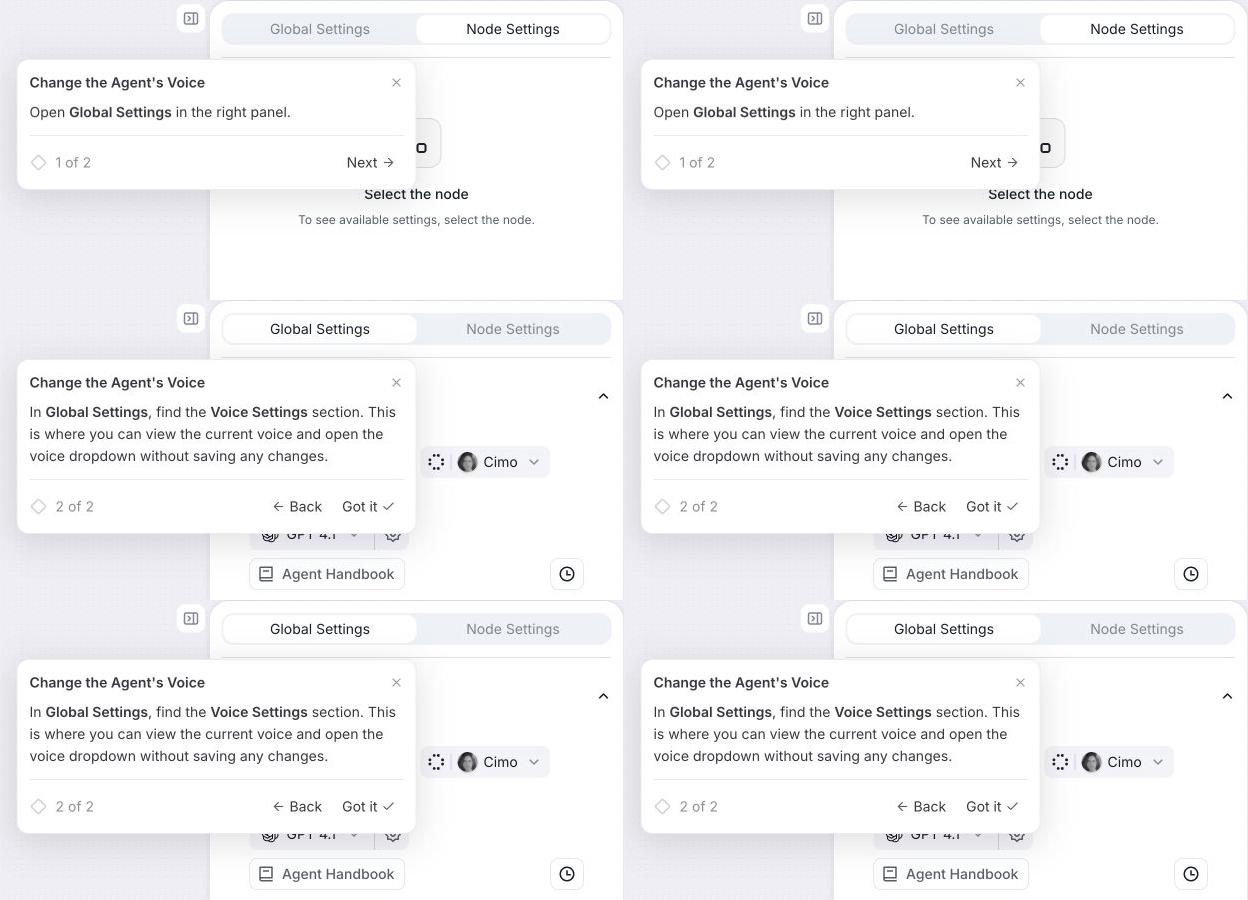
A guided walkthrough locates the voice control in a template agent’s settings.
Manage your conversations
Your conversation history is shared across dashboard pages, so you can reopen a chat and continue where you left off.Start a new conversation
Click New chat at the top of the panel when you switch tasks. The previous conversation stays in history.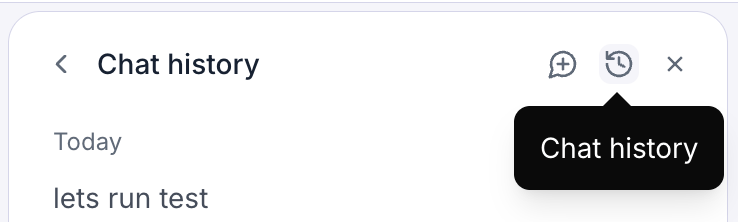
Start a new chat, reopen history, or close the panel from its header.
Open your chat history
Click History to reopen a conversation. On Home, use the searchable Conductor History panel. Current Page marks chats last used on the page you have open. Conductor restores your most recent chat when you reopen the panel. If its last message was sent elsewhere, Last used on links back to that page with the conversation open.Rename or delete a conversation
Open the conversation title menu and choose Rename chat or Delete chat. Enter a new title and press Enter, or confirm deletion when prompted. You can also hover over a history entry to open its rename/delete menu. Deletion cannot be undone.Give feedback
Click Helpful (👍) or Not helpful (👎) on a reply. After Not helpful, describe what you expected and click Submit, or choose Skip to leave only the rating. Click a selected thumb again to clear it, or choose the other thumb to change it.Copy a conversation ID or link
Copy a conversation ID or link
Open the conversation title menu and click Copy chat ID to identify it for support.When you open a resource through a reply’s navigation link, the destination URL includes the conversation. Copy that URL to revisit the same resource and chat, or share it with a teammate who has workspace access.
What happens to long conversations?
What happens to long conversations?
Conductor automatically condenses earlier context in long conversations. You may briefly see Condensed conversation context in its activity. Continue in the same chat after condensation, or start a New chat for a different task.
Pricing
Conductor includes a daily free message allowance. Workspace admins can enable pay-as-you-go and set a monthly spending limit. See Pricing for allowances, reset times, and billing details.Where to go next
Build and refine agents
Create and refine agents, configure functions, and review changes.
Test and improve agents
Create test cases, run simulations, and investigate failures.
Inspect knowledge bases
Inspect sources, indexing status, and agent associations.
Review calls and chats
Find conversations and investigate transcripts, tool calls, and outcomes.
Build analytics dashboards
Build dashboards, discuss charts, and review analytics changes.
Review QA results
Inspect cohort trends and check individual call evaluations.
Review contacts
Find contacts and review their conversation history across agents.